IM notifications
When the app is closed or in the background, IM notifications are how you find out about new messages. This article covers how they work and what to check when they stop arriving.
If IM isn’t set up yet, start with Setting up IM.
How they work
You don’t need to keep the app open to receive IM. When a buddy sends you a message and your device isn’t actively connected to the chat server, the message goes through your provider’s push service and arrives on your device as a notification — the same way messages arrive in any other chat app.
The first time you sign in, your device asks whether the app can send you notifications. If you tapped Don’t Allow here, you won’t get any IM notifications until you turn permission back on in your device’s settings — see the troubleshooting section below.
Your messages stay in sync across every device you’re signed in on, so opening the app on your phone later will show you anything you already read on another device.
What the notification shows
An IM notification includes:
- Who sent it — the buddy’s name (or their IM address if you haven’t added them as a buddy).
- A preview of the message — the first line or so.
- A small emoji for media messages — 📷 for an image, 🎥 for a video, 📎 for a file, and 🎤 for a voice message (Android). If the sender attached a caption, it appears next to the emoji.
Tapping the notification
Tapping the notification opens the app to the Messages screen. From there, tap the conversation to read the message and reply. The app doesn’t currently jump straight into the specific chat.
When notifications don’t arrive
If someone sends you an IM and your device stays silent, work through these in order:
1. Check IM is connected
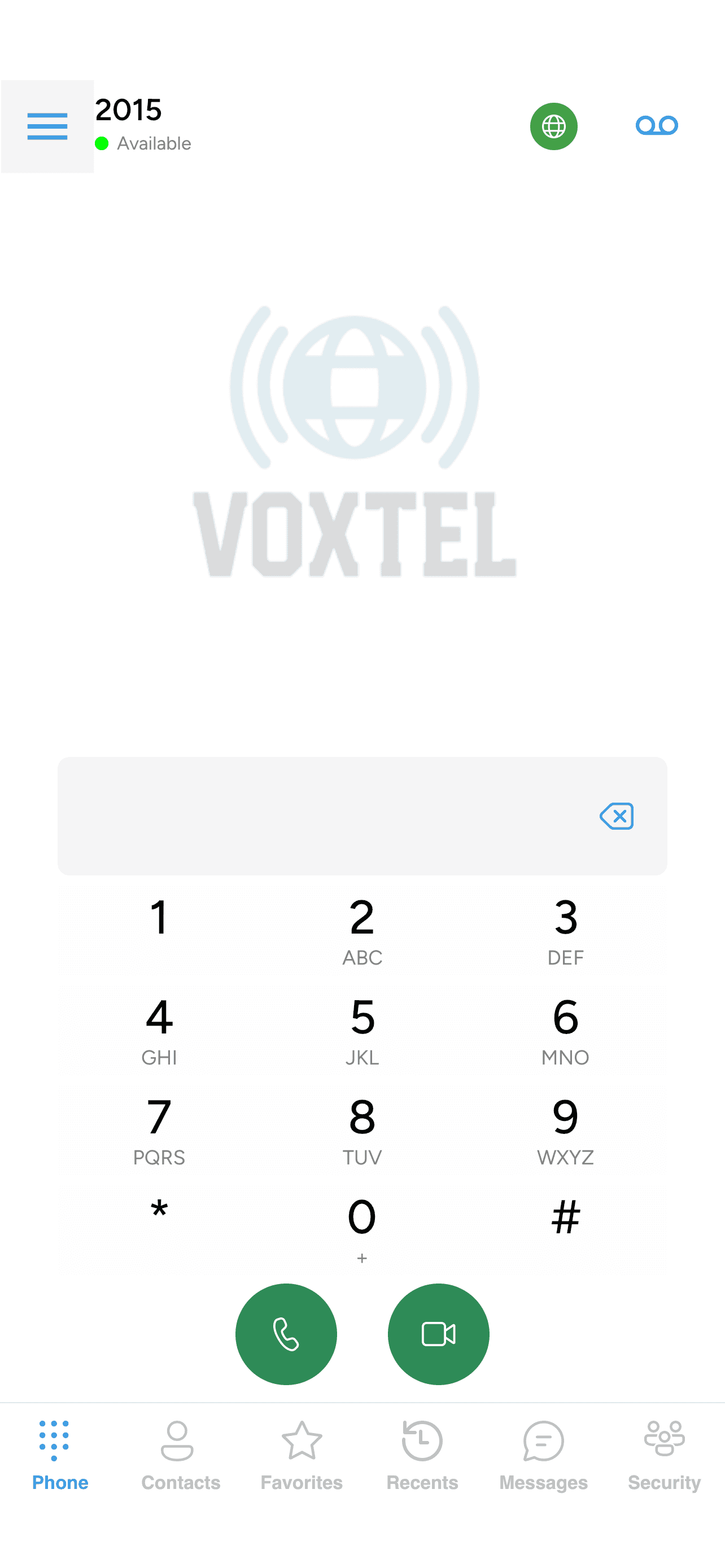
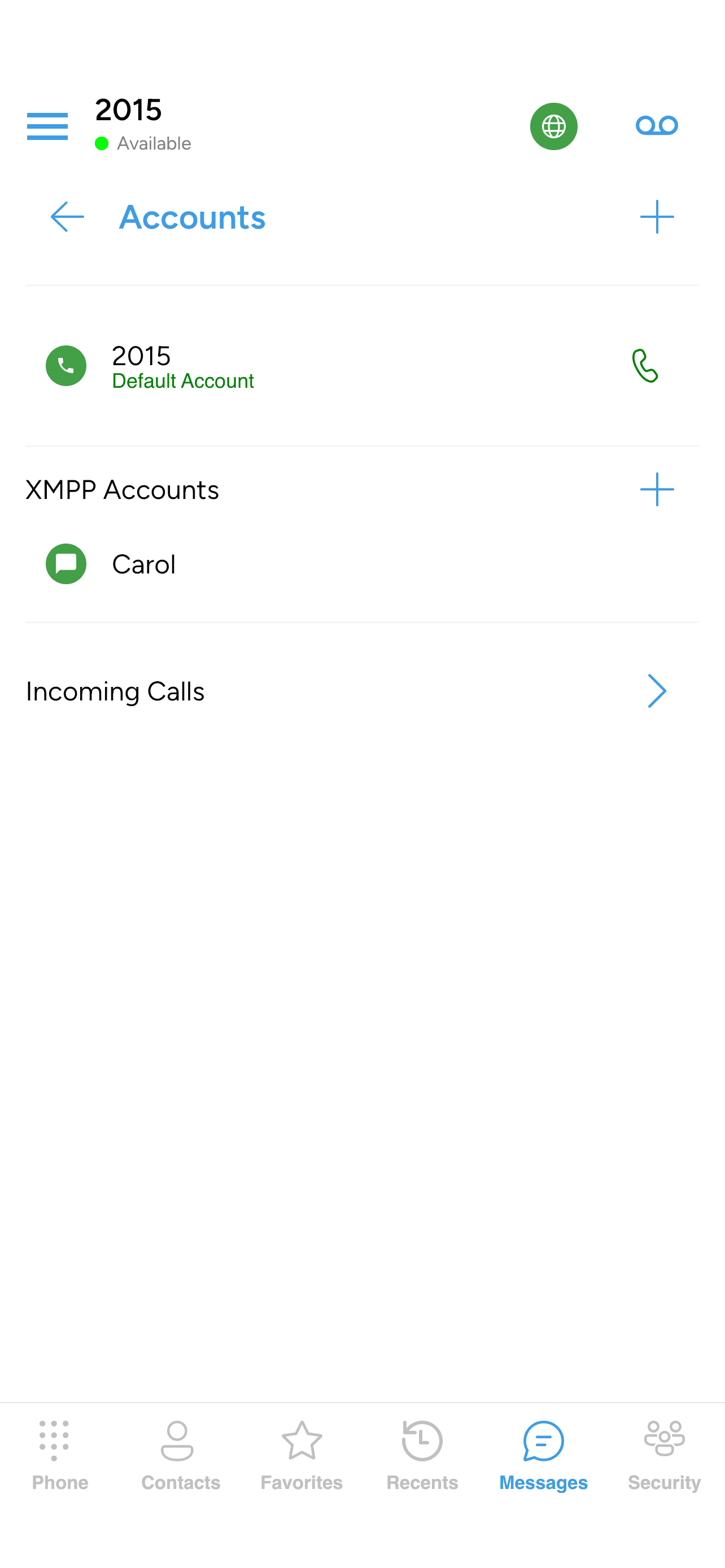
The connection status for each of your IM accounts lives on the Accounts screen, not the Messages screen.
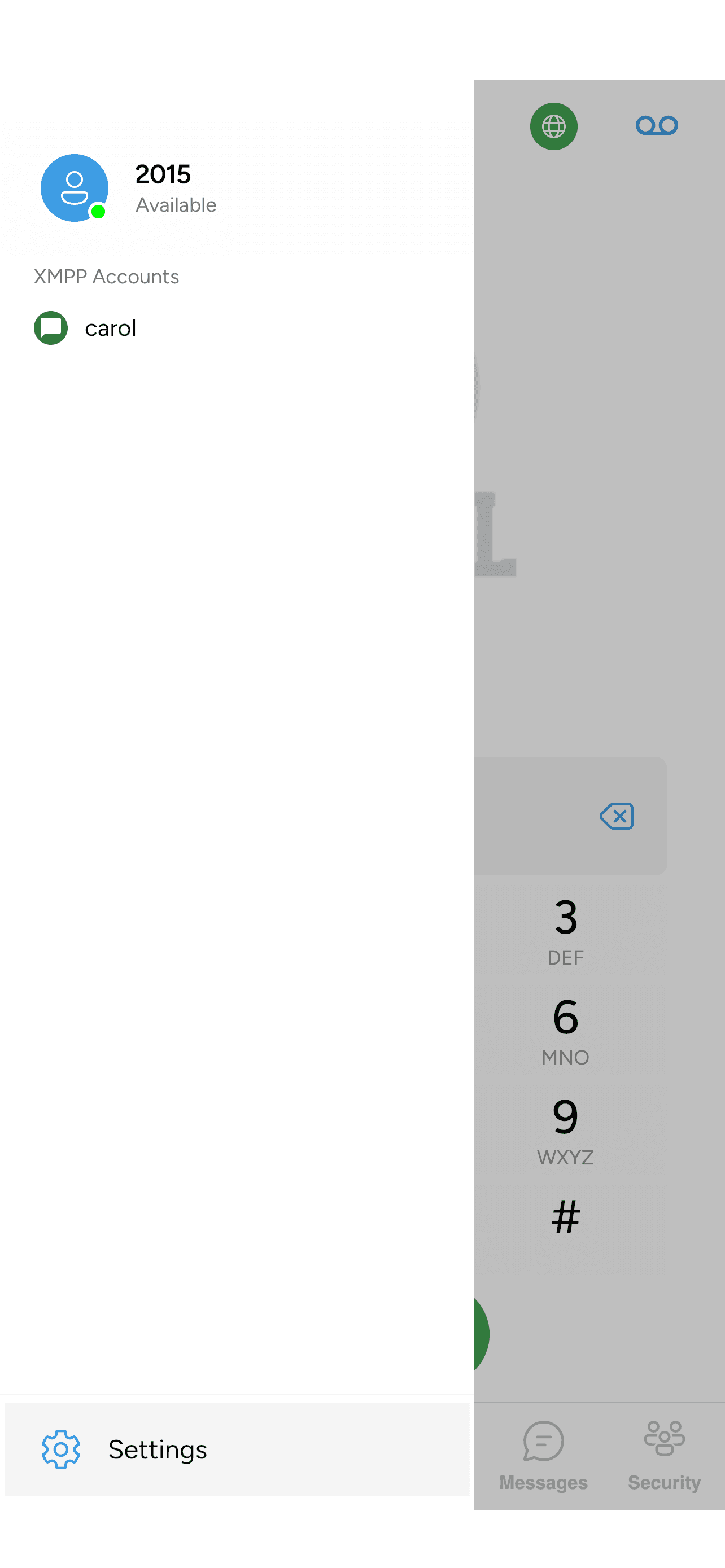
- Tap the gear (Settings) icon.
- Tap Accounts.
- Scroll to the XMPP Accounts section.
Each account entry has a coloured dot next to its name — green means connected, red means not connected. If yours is red, IM can’t route messages to your device and no notification will fire. Tap the entry to check your password is correct, or see the troubleshooting table in Setting up IM.
The IM pill at the top of the Messages screen only filters what you see there — it doesn’t tell you whether IM is connected. Always check the coloured dot on the Accounts screen instead.
2. Check notification permission
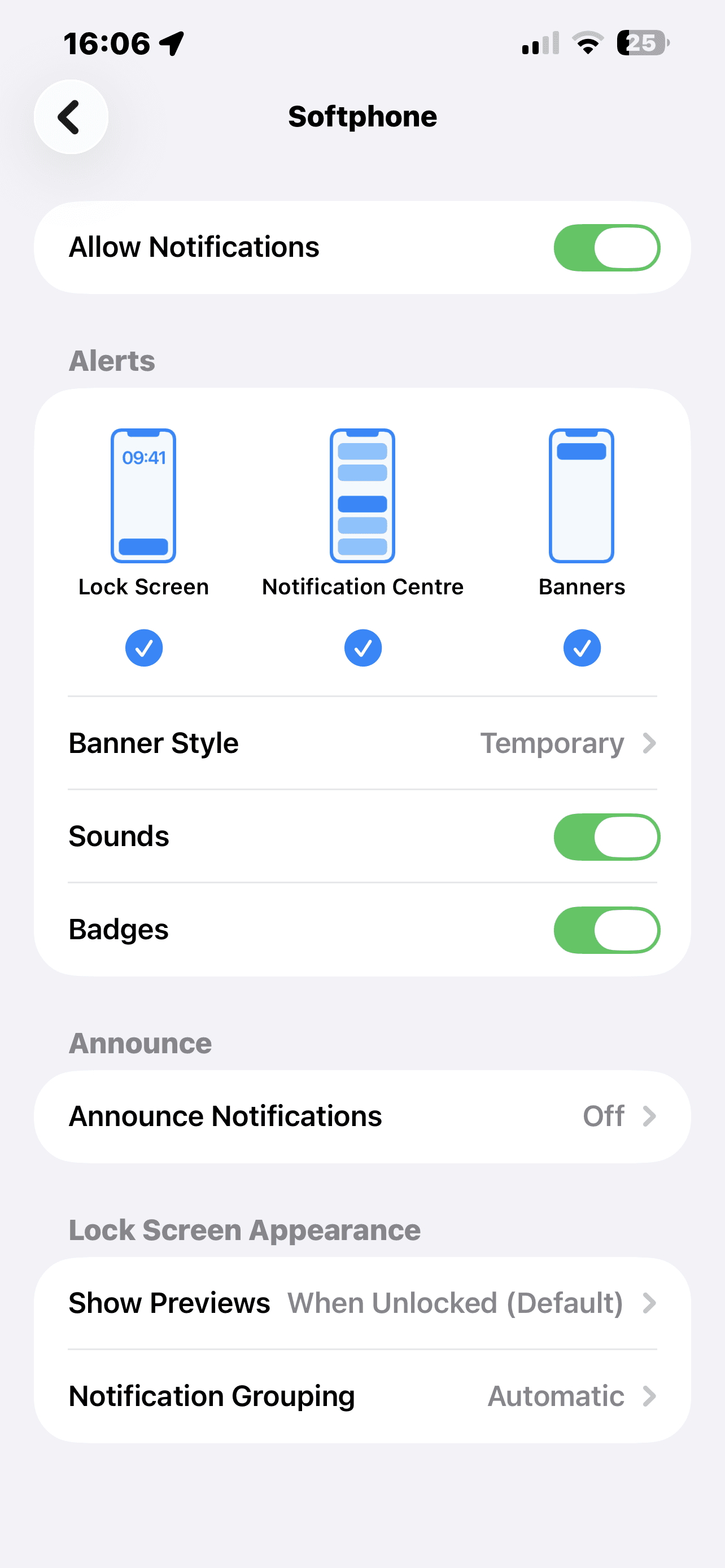
- iOS: Settings → Notifications → the app → make sure Allow Notifications is on.
- Android: Settings → Apps → the app → Notifications → make sure notifications for the app are enabled.
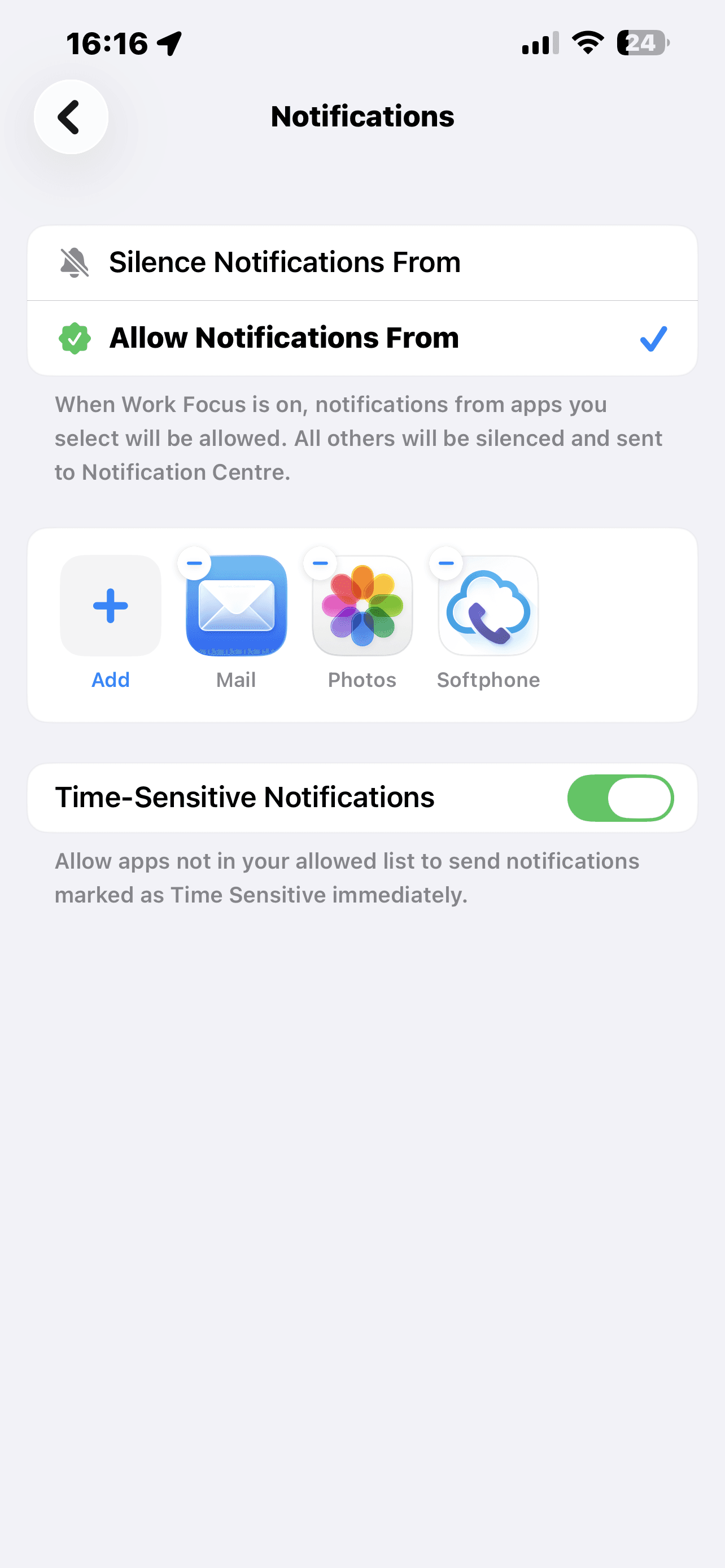
3. Check Focus / Do Not Disturb on the device
Both iOS and Android have system-level focus modes that silence notifications from apps you haven’t allowed through.
- iOS Focus Mode: Settings → Focus → tap the active mode → Apps → allow the app through.
- Android Do Not Disturb: Settings → Sound & vibration → Do Not Disturb — either turn it off or allow the app through.
This is separate from the in-app Do Not Disturb presence status (covered in IM buddies and presence). The in-app status only changes how you appear to your buddies; your device’s Do Not Disturb affects whether any notification appears at all.
4. Check battery optimisation (Android only)
Android puts apps to sleep to save battery, which can delay or drop push notifications entirely. The app asked you to allow battery optimisation to be turned off when you first signed in — if you tapped Deny, do it manually now:
- Settings → Apps → the app → Battery.
- Set it to Unrestricted (some devices call this Not optimised or Allow background activity).
Some manufacturers (Xiaomi, Huawei, Oppo, some Samsung One UI builds) add extra battery-saving layers on top of stock Android. Search your device’s settings for Auto-launch, Background app management, or Sleeping apps, and make sure the app isn’t restricted.
5. Check you’re not signed in somewhere else
If you’re signed in on another device — a tablet, a spare phone, or the desktop softphone — and that device is actively online, your chat server may deliver the message directly to that device. The message itself won’t be lost (all your signed-in devices stay in sync), but the notification on your phone may not fire.
If you need every message to notify your phone, quit or sign out of the app on the other device.
6. Send yourself a test
Once you’ve changed a setting, send yourself a message from another device, or ask a buddy to send one. Push notifications can take a few seconds to arrive on a good connection, and longer on a poor one — wait at least a minute before assuming it didn’t work.
If none of the above helps, contact your provider. IM push notifications rely on a service they run — outages there will affect every device.