IM buddies and presence
Buddies are the people whose presence you follow — you see whether they’re available, away, on a call, and so on. Presence is that small status shown next to each buddy’s name. This article covers both.
If IM isn’t set up yet, start with Setting up IM.
Where your buddy list lives
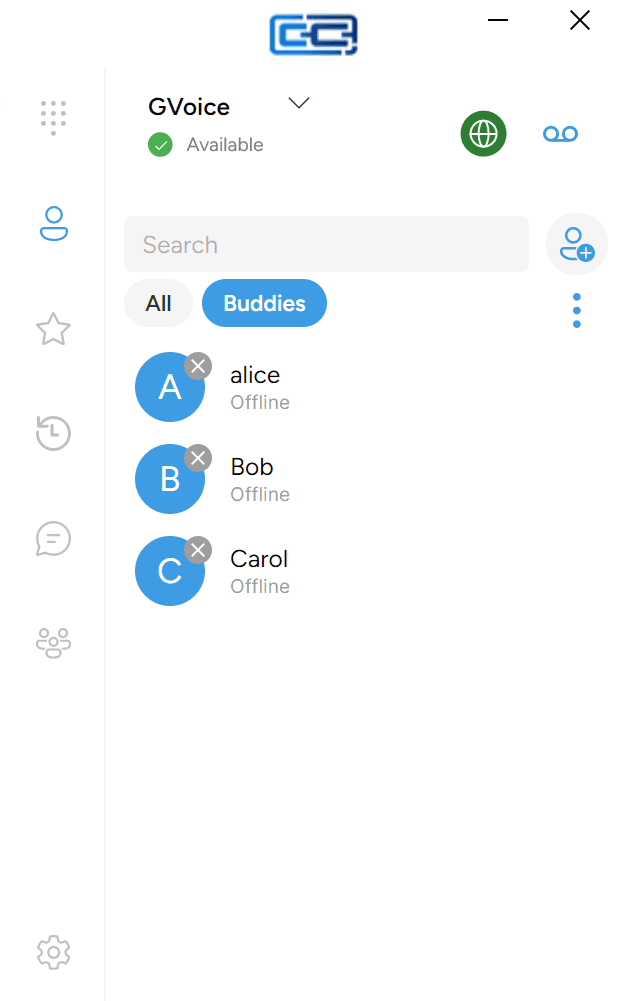
Your buddies live under Contacts in the left rail, not under Messages.
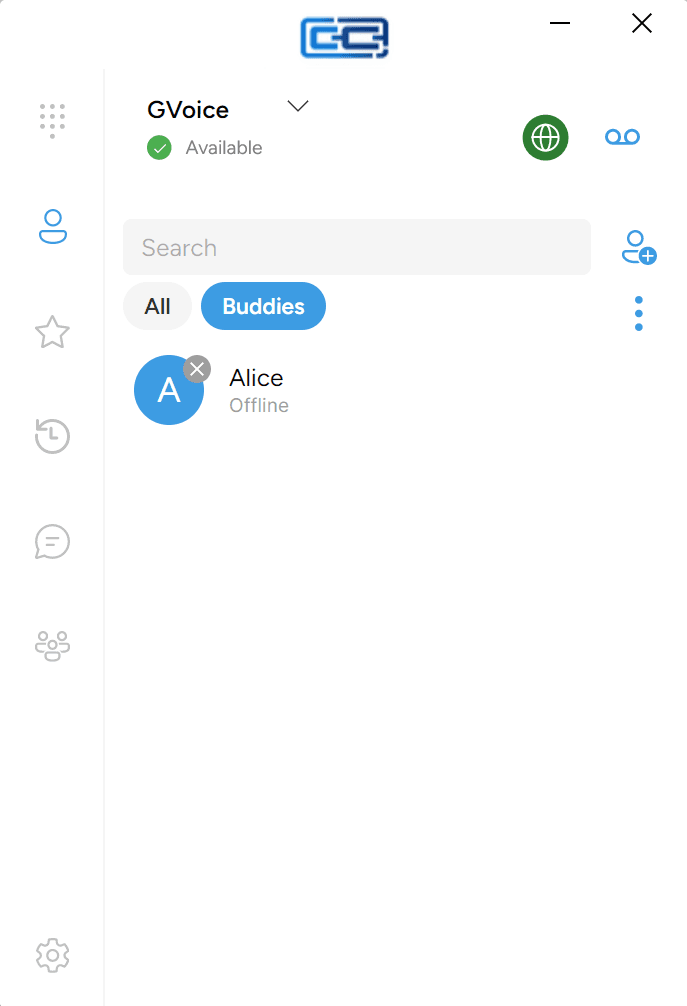
- Click the Contacts icon (person) in the left rail.
- At the top of the screen you’ll see filter pills. The first two are All and Buddies. (Any contact groups you’ve created appear as extra pills after them.)
- Click Buddies.
All shows every entry in your contacts. Buddies narrows that down to just the people whose presence you’re subscribed to — your IM buddies and any SIP buddies you’ve added.
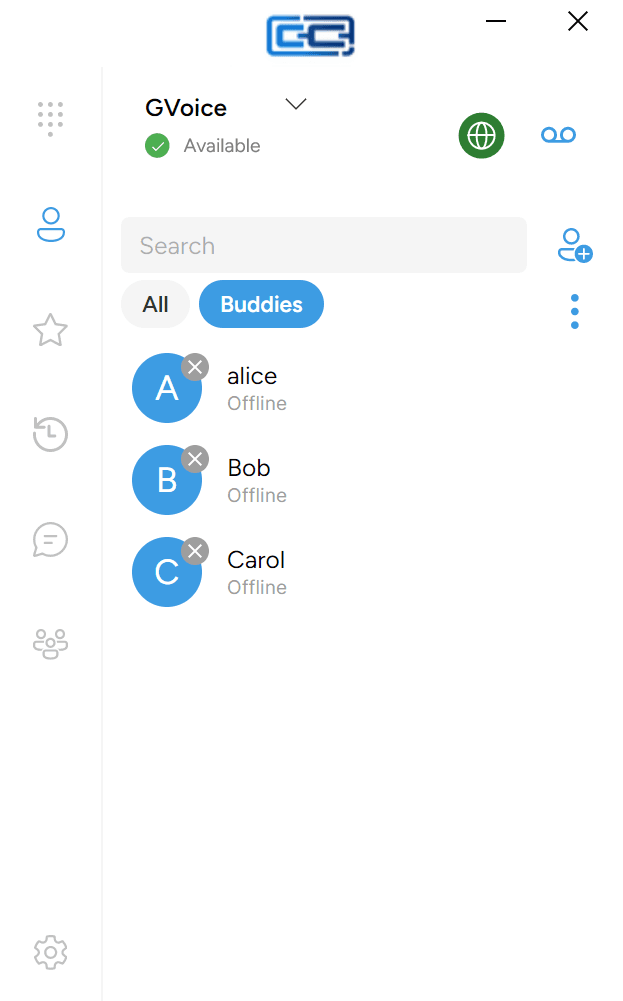
IM buddies vs SIP buddies
Inside the Buddies pill, you’ll see two kinds of buddy mixed together:
- IM buddies — added over the IM connection to your provider’s chat server. Their presence uses IM presence (Available / Away / Busy / etc.).
- SIP buddies — added on your SIP account, used for phone-side things like watching whether a colleague is on a call. Their presence uses SIP presence.
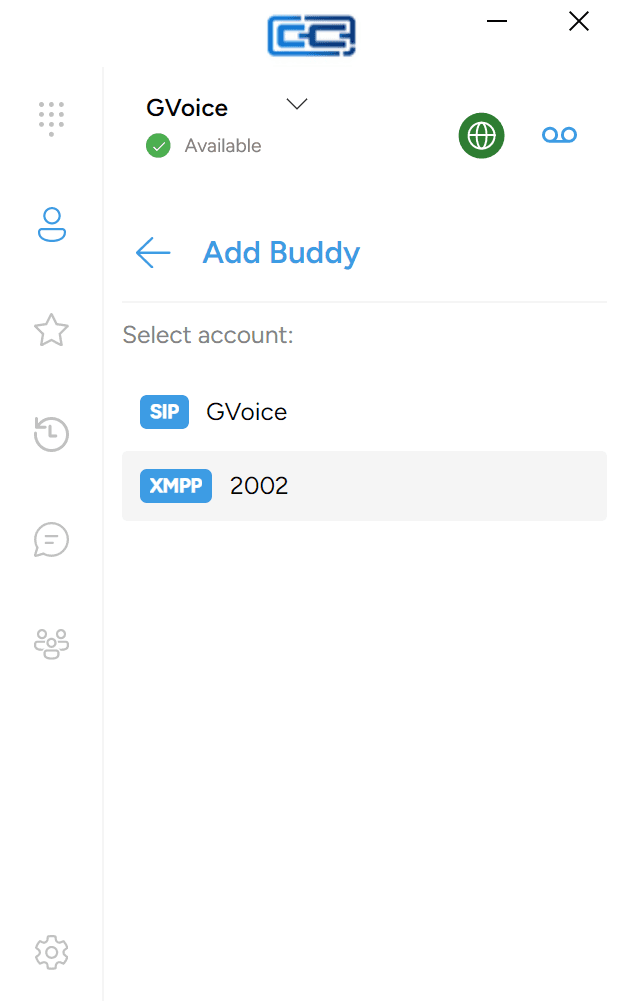
The list doesn’t put a badge next to each entry to tell you which is which — the type distinction comes up when you add a buddy (the Add Buddy dialog labels each account with either XMPP or SIP), and shows up in the presence icons you see for each buddy.
This article covers IM (XMPP) buddies. SIP buddies work differently and aren’t covered here.
Setting your own presence
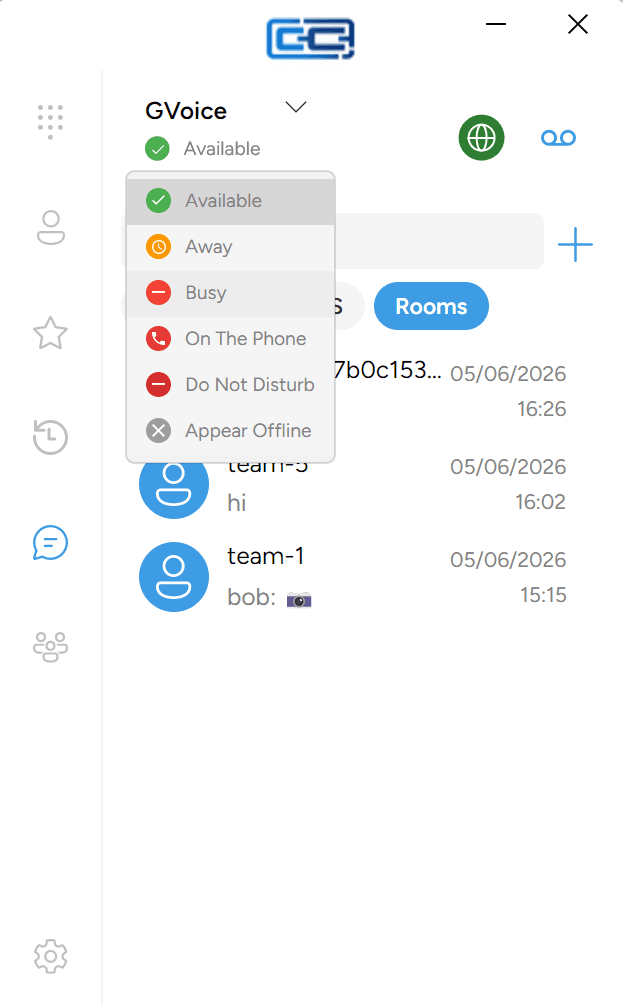
Your own presence lives directly under your account name in the top-left of the main app window. Below the account picker there’s a small drop-down showing the presence you’re currently broadcasting to your buddies (Available by default when you sign in). Click it and pick one of the six options:
- Available — you’re around and happy to be messaged.
- Away — you’re at your device but not actively watching.
- Busy — you’re around but occupied.
- On The Phone — you’re on a call.
- Do Not Disturb — you’d rather not be interrupted right now.
- Appear Offline — your buddies see you as offline, but you can still send and receive messages.
Your choice sticks across app restarts. If you set Do Not Disturb in the evening you’ll still be on it the next morning until you change it back.
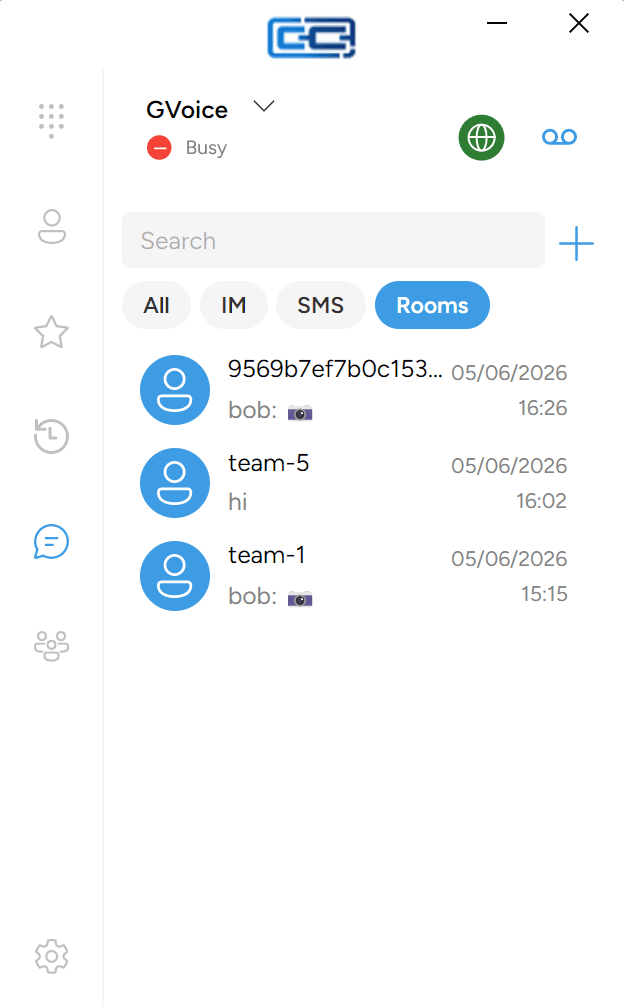
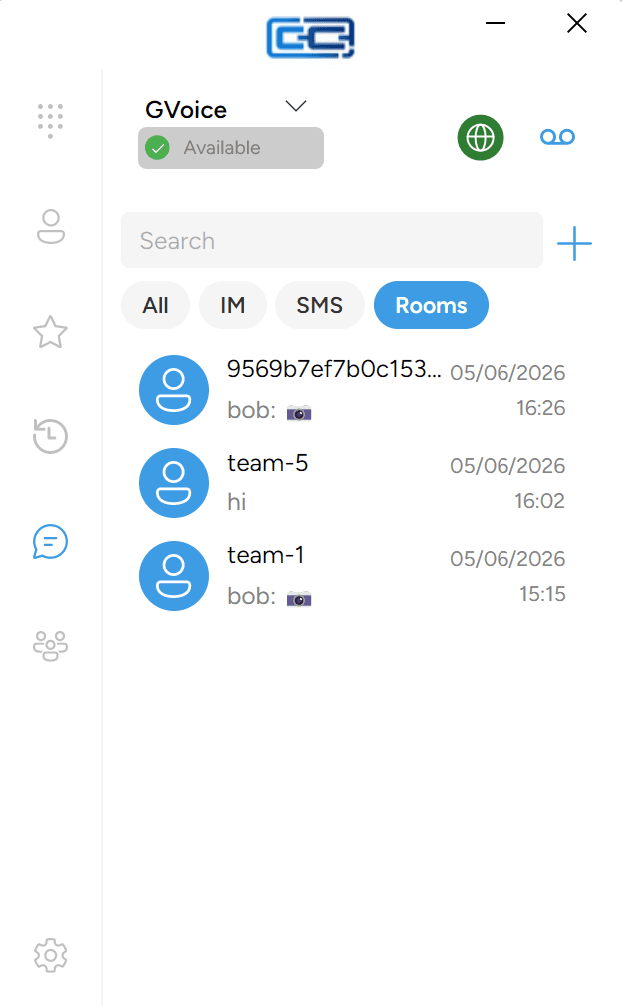
Do Not Disturb on your presence hides the “I’m reachable” signal from your buddies but does not stop messages arriving on your device. If you also want to silence notifications on this computer, that’s a separate Windows setting — see IM notifications.
Appear Offline hides your presence entirely; it does not turn IM off. You’ll still receive and send messages, buddies just see you as offline.
Reading a buddy’s presence
Each buddy has a small coloured presence dot next to their name. The colour is the quick cue:
- Green — Available.
- Orange — Away.
- Red — one of the “don’t-disturb-me” states: Busy, On the Phone, or Do Not Disturb. The icon inside the dot tells you which one at a glance.
- Grey — Offline, or the buddy has chosen Appear Offline.
You can send an IM buddy a message whether they’re online or not — they’ll receive it the next time they come online.
Adding an IM buddy
To add someone to your IM buddy list:
- Click Contacts in the left rail.
- Click the Buddies pill at the top.
- Click the person-add button (a person icon with a +) in the top-right.
- If you have both XMPP and SIP accounts set up, an Add Buddy dialog appears asking you which account to use. Click the row marked XMPP.
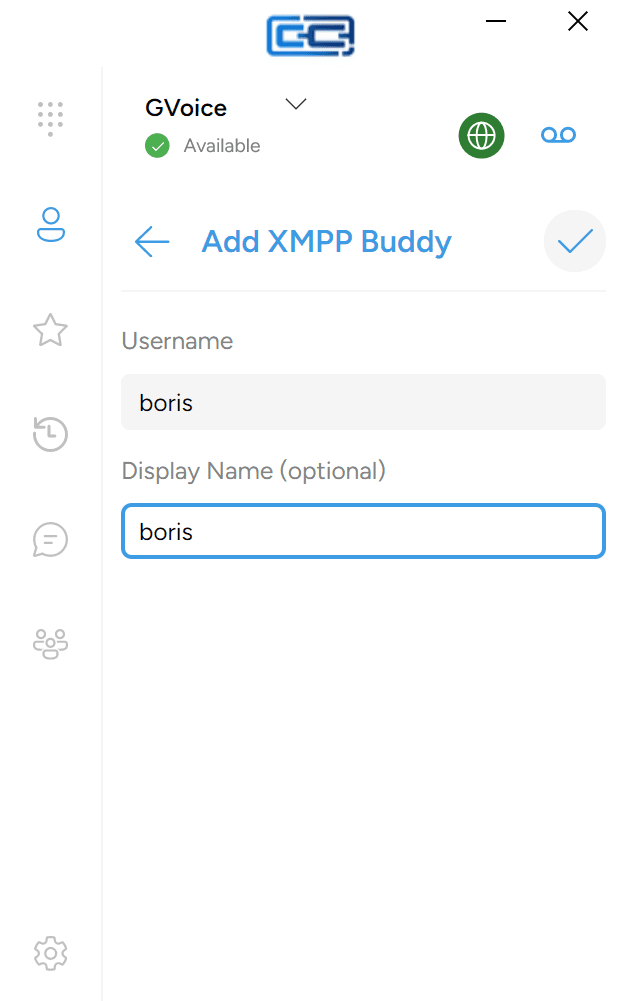
- In the Add XMPP Buddy form that opens, fill in:
- Username — the buddy’s IM address, e.g.
bob@chat.example.com. - Display Name (optional) — a friendly name for your own reference.
- Username — the buddy’s IM address, e.g.
- Click the checkmark button in the top-right to save.
The buddy appears in your Buddies pill straight away. On the IM side, the chat server may ask them to approve the request before your list will show their presence — until they do, their dot stays grey.
Make sure the row you click in the Add Buddy dialog is marked XMPP, not SIP. Picking a SIP account here adds them as a SIP buddy instead, using a different form with different fields.
Removing an IM buddy
To remove a buddy:
- Click Contacts in the left rail.
- Click the Buddies pill.
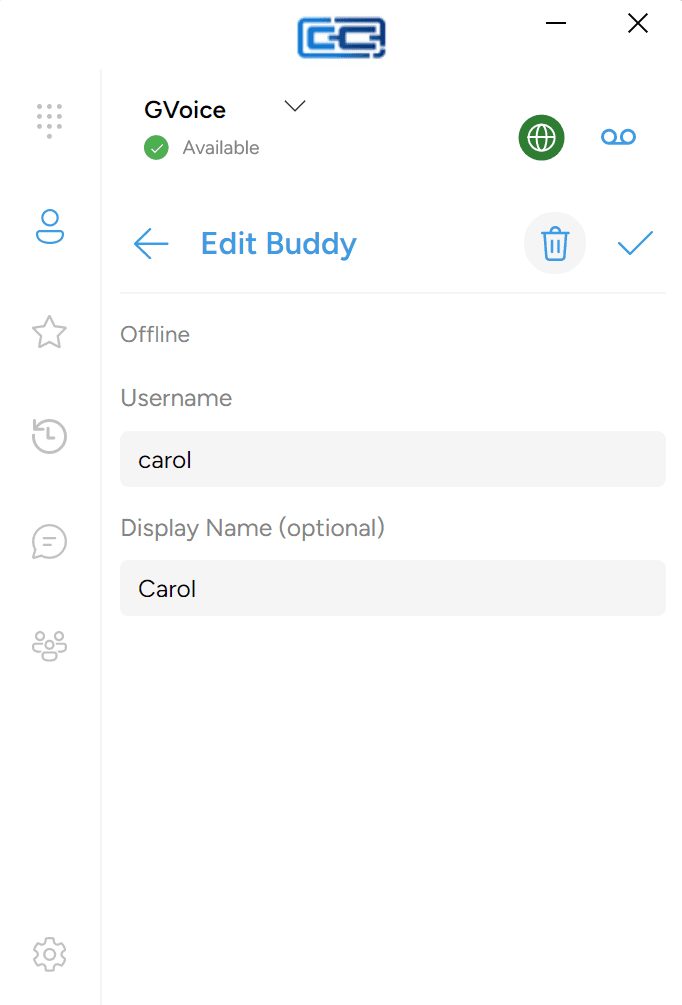
- Click the buddy’s entry to open it. The Edit Buddy dialog opens.
- Click the trash icon in the top-right corner of the dialog.
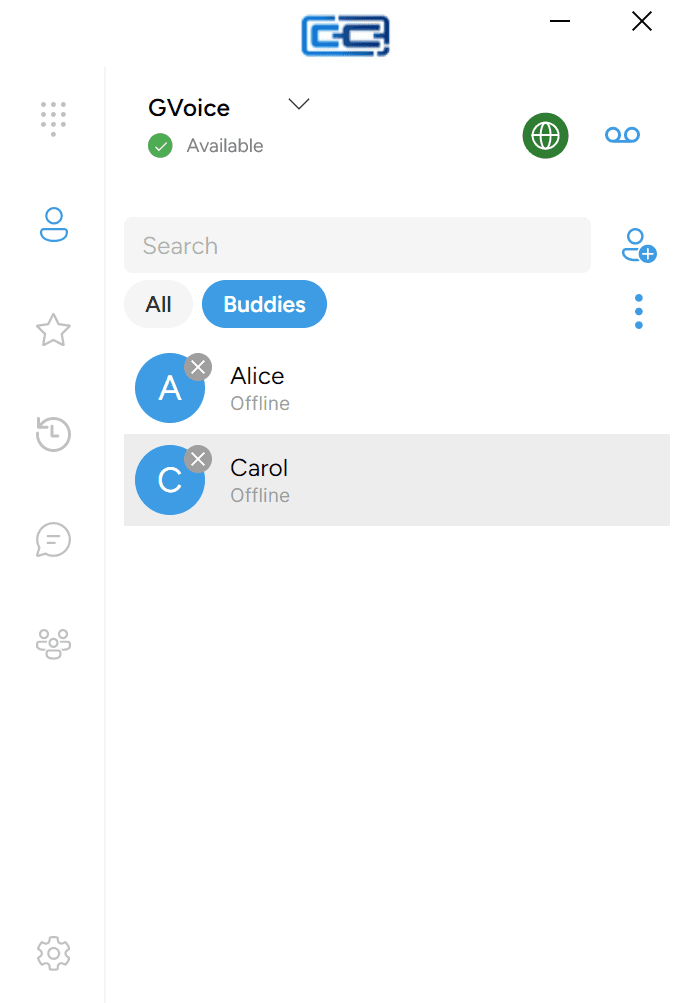
The buddy is gone from your list straight away and stops seeing your presence. Any past messages you exchanged stay in your conversation history unless you also clear the conversation.
Removing a buddy here will remove them from your list. If they show up again later, it usually means the other person still has you on their contact list and their app asked to add you back, or a shared contact list has been set up by your admin. Ask the other person to remove you too, or get in touch with your admin if the buddy keeps coming back.
Buddy pictures
The picture next to each buddy’s name is fetched from their profile on the chat server, not from your computer. When someone updates their picture on their end, the new one reaches you the next time the app syncs.
If a buddy’s new picture hasn’t shown up yet, closing and reopening the app usually pulls the latest version. Picture updates are not instant.
Next steps
To make sure you get notified about new messages when the app is closed, see IM notifications.