Sending IM messages
Once IM is turned on for your account (see Setting up IM), you can send messages to your buddies through the Messages screen. This article covers IM only — SMS uses a different filter and works differently.
Opening an existing conversation
- Click the Messages icon (chat bubble) in the left rail.
- At the top of the messages list, click the IM pill.
You’ll see a list of your recent IM messages — most recent first. Click any of them to open the full conversation.
Starting a new conversation
To message someone for the first time:
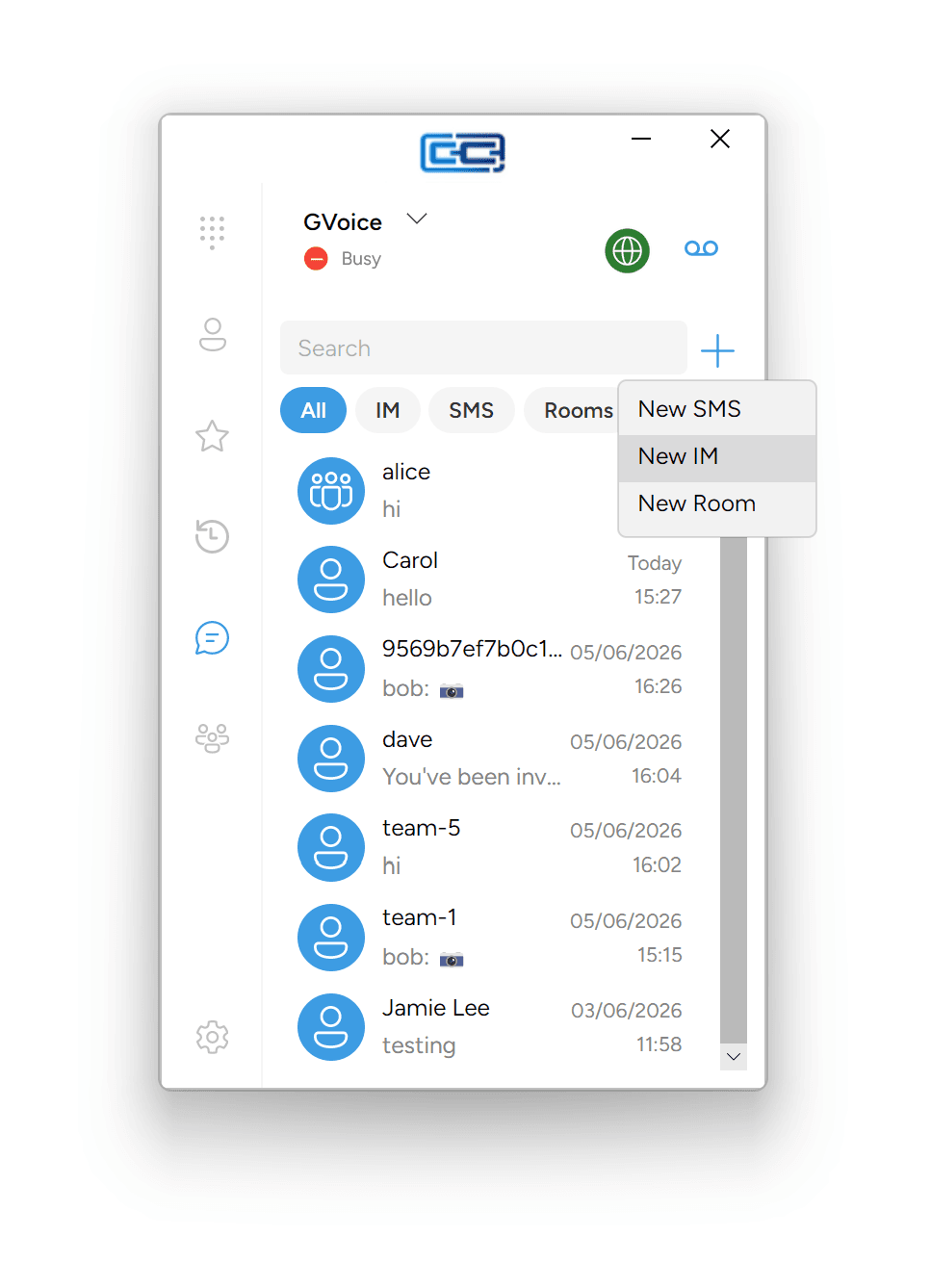
- On the Messages screen, click the + button in the top-right of the messages list.
- Click New IM in the menu that appears.
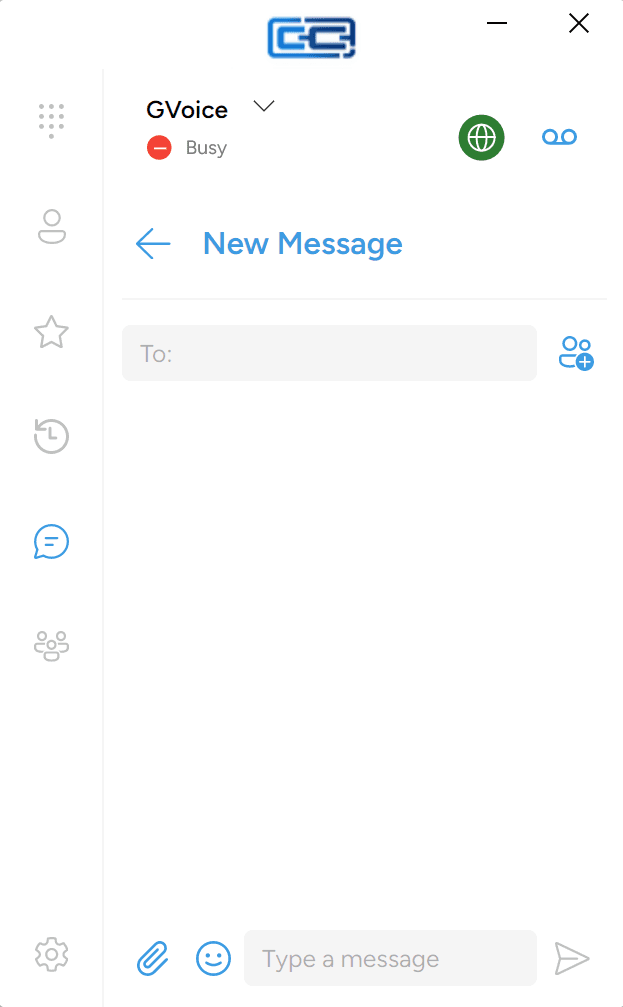
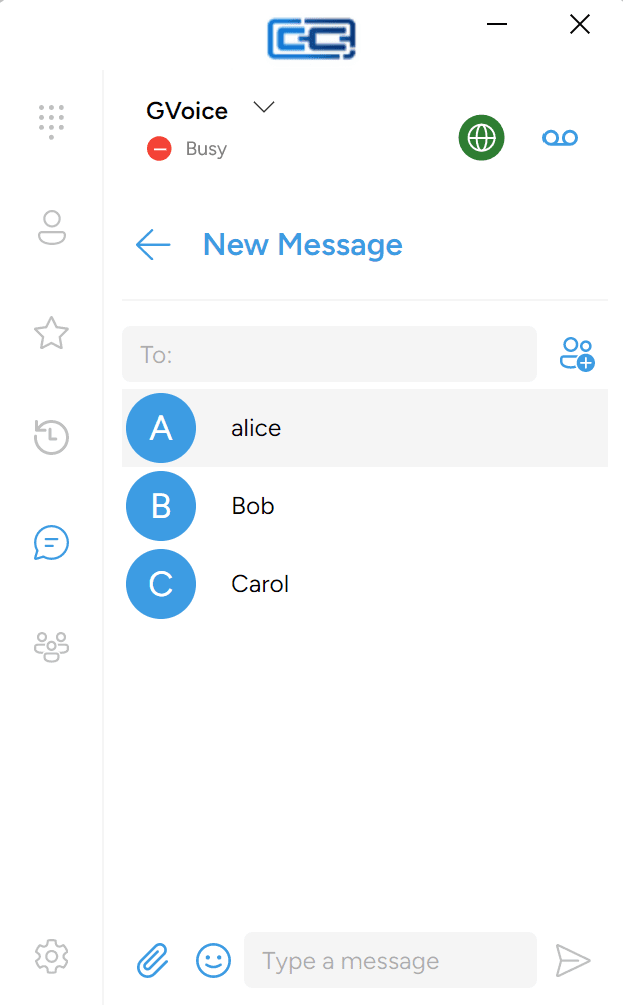
- Pick a contact from the list, or search for one.
The conversation opens ready for you to type.
Messaging someone who isn’t in your list
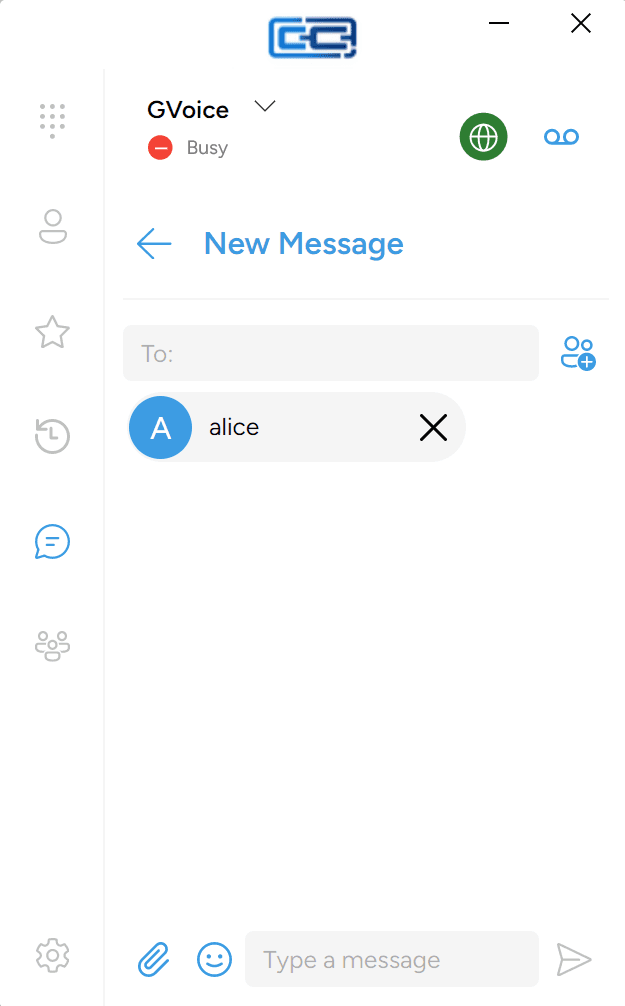
The contact list on the New IM screen only shows people you’ve already added as an IM buddy — but you can still message someone who isn’t there. Type their IM address (something like bob@chat.example.com) into the To: box at the top and press Enter, or click into the message area below. The address becomes a recipient chip and the conversation opens.
You can only start an IM conversation with someone whose IM address is on the same chat network as yours. If your provider is separate from theirs, ask your provider whether cross-network chat is supported before you try.
Adding them as an IM buddy
If you plan to message someone regularly, it’s worth adding them as an IM buddy. Once you have, you can pick them straight from your list on the New IM page without typing their address:
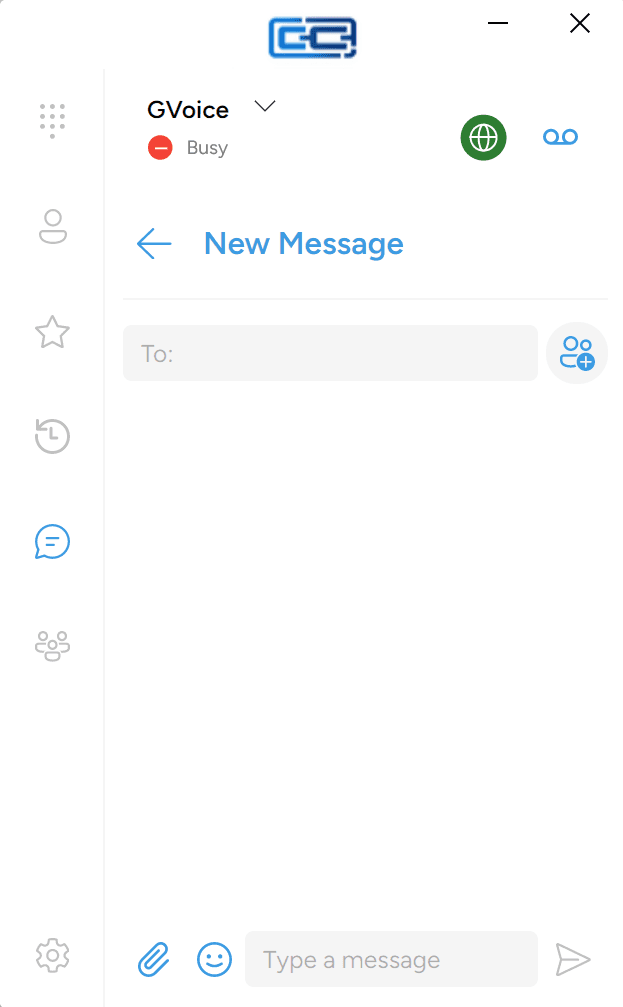
- On the New IM page, click the Add contact icon (a person icon with a +) next to the To: box.
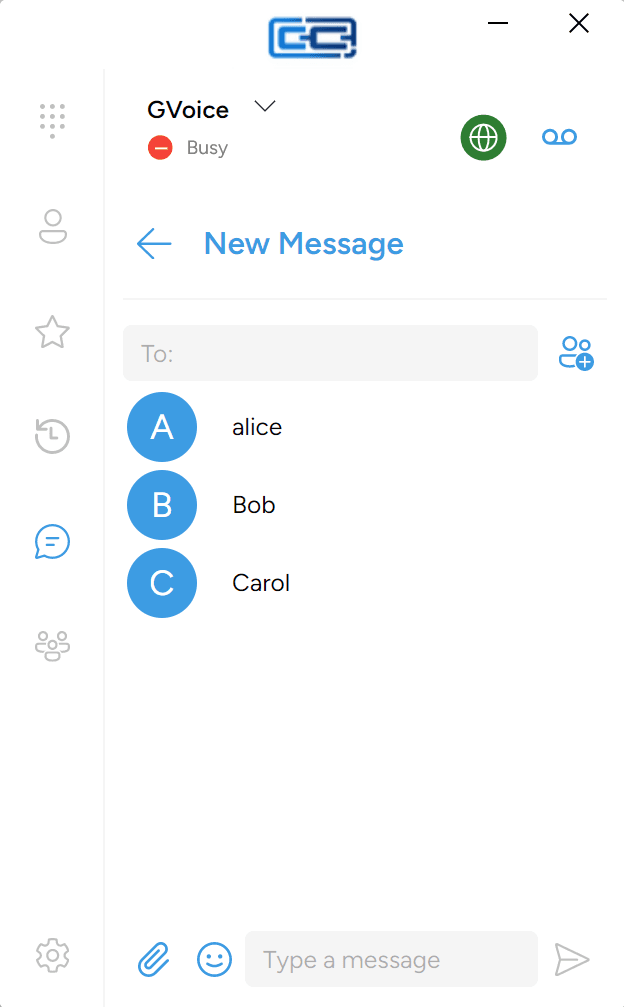
- Your buddy list opens.
- Click the buddy you want.
They appear as a pill in the To: field, ready for you to type your message and send. You’ll also see their presence (Available / Away / etc.) next to their name inside the conversation, and their entry shows up on the Buddies list under Contacts.
To add someone to your buddy list in the first place, see IM buddies and presence.
Sending a message
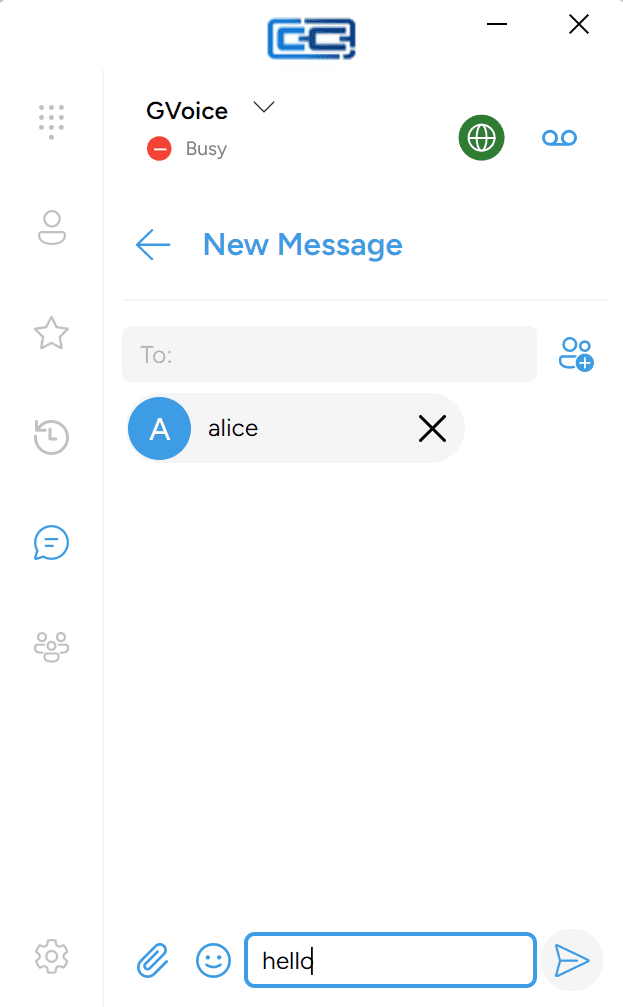
At the bottom of an open conversation, you’ll see a text box with Type a message as the placeholder.
- Click the box.
- Type your message.
- Click the Send button to the right of the box.
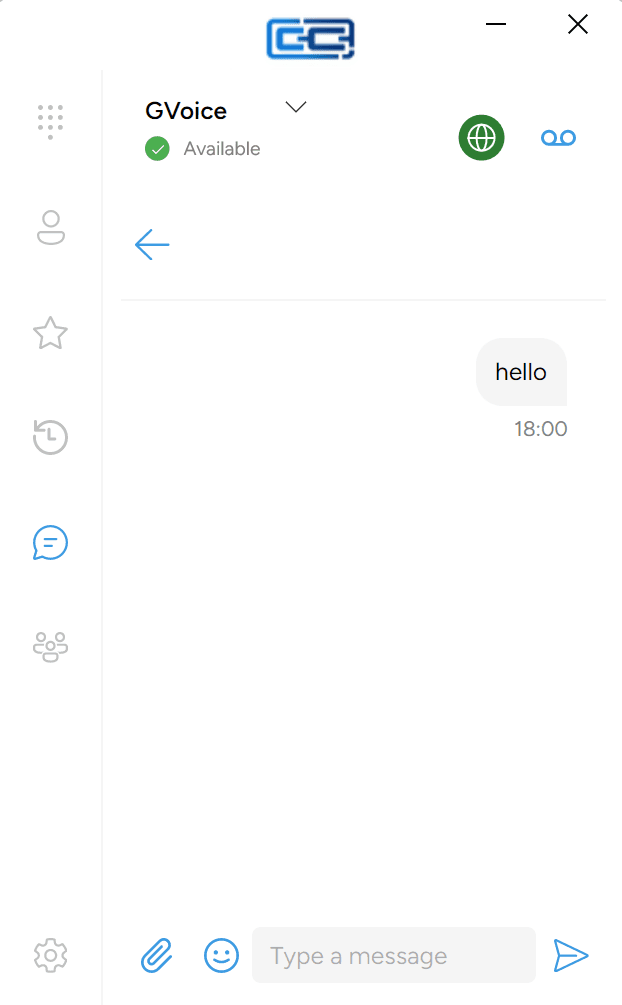
Your message appears in the conversation immediately. When your provider’s IM server has passed the message on to the other person’s device, a small green checkmark appears at the bottom-right of your message next to its timestamp. That’s the delivered marker.
The app shows a delivered marker but does not show a separate “read” marker. If you see the checkmark, the other person’s device has received your message — the app won’t tell you whether they’ve opened it yet.
Reacting to a message
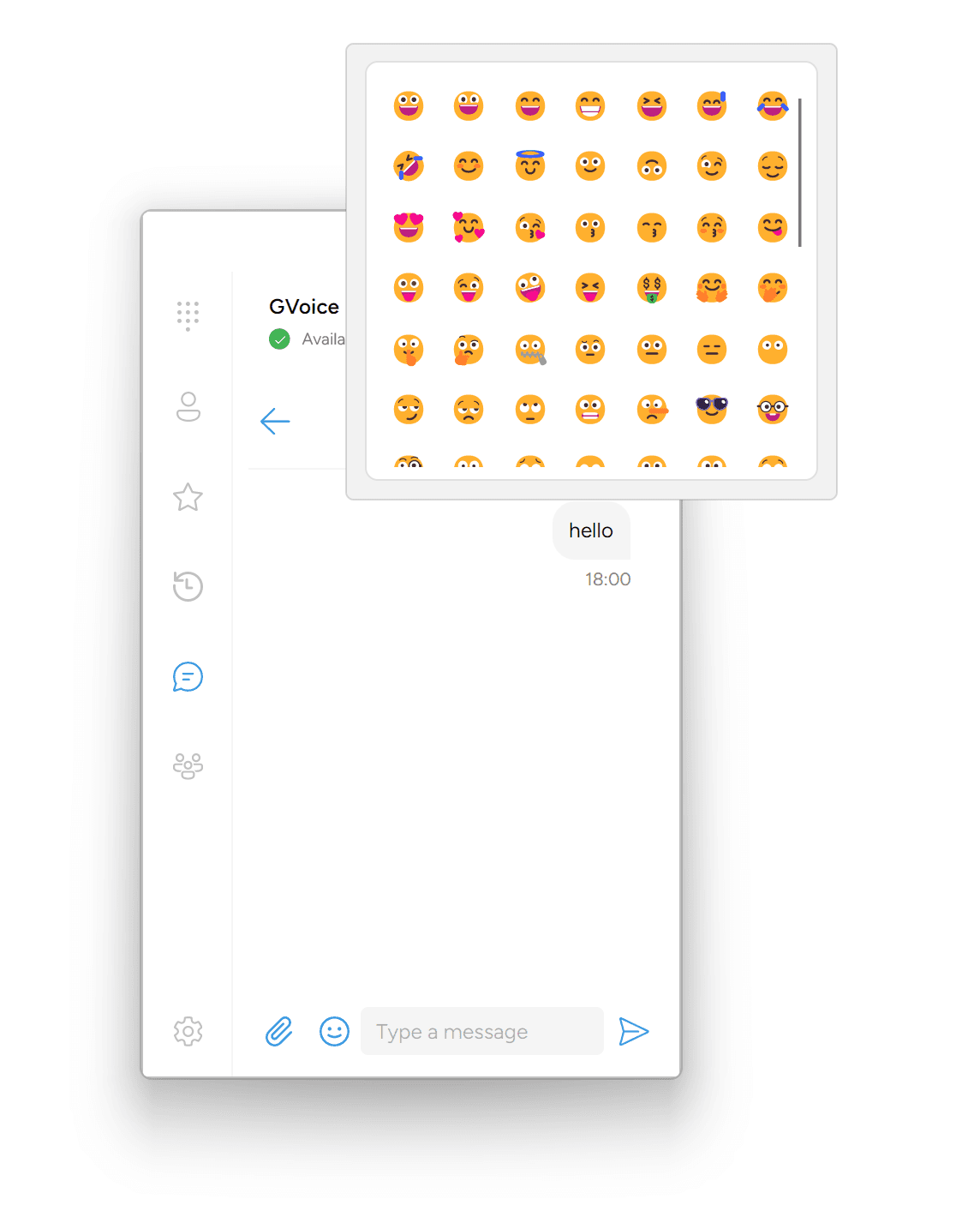
Instead of typing a reply, you can react to a message with an emoji.
- Right-click the message you want to react to.
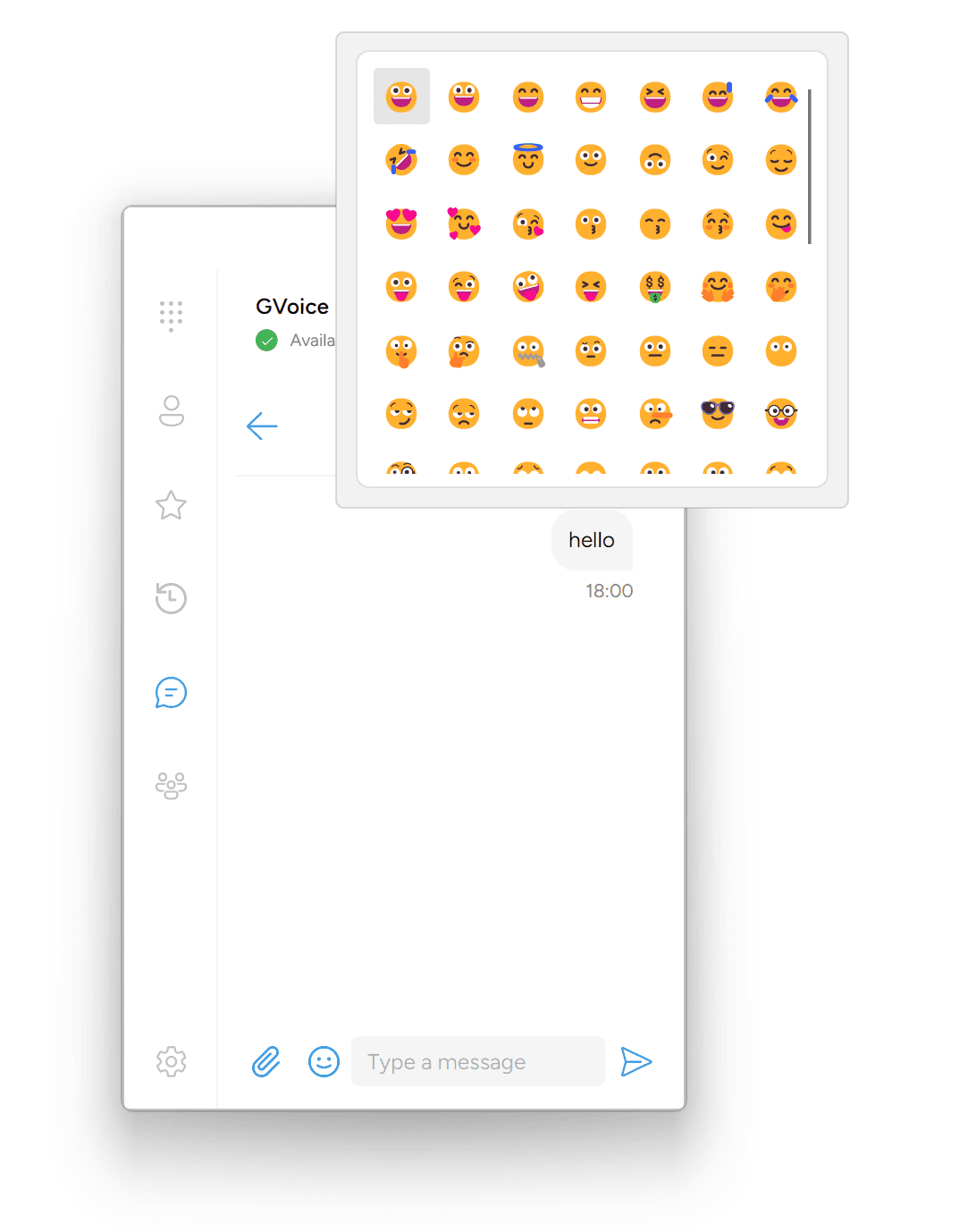
- A grid of emojis appears — smileys, faces, hearts, gestures, and a few common symbols.
- Click the emoji you want.
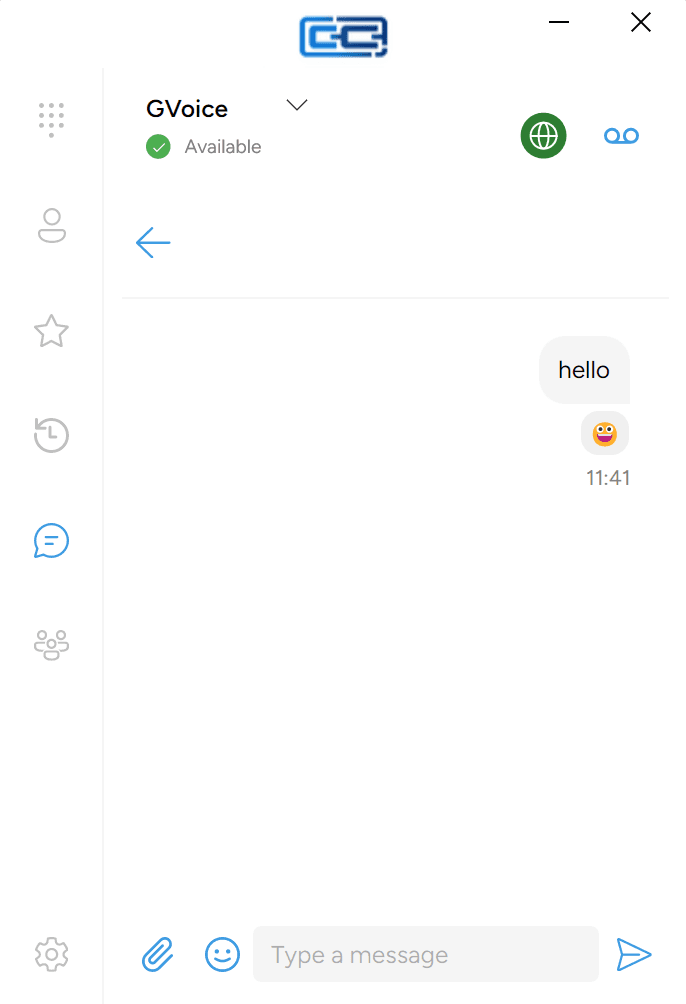
Your reaction appears just under the message as a small rounded chip. Everyone in the conversation sees it. Reactions work the same way in one-to-one conversations and in rooms.
The picker offers a fixed selection of about seventy emojis — you can’t type an arbitrary emoji from your keyboard. The app also doesn’t offer an obvious way to remove a reaction once you’ve added one, so pick carefully — reacting by mistake generally sticks.
Attaching a photo or file
To send a photo, video, or any other file:
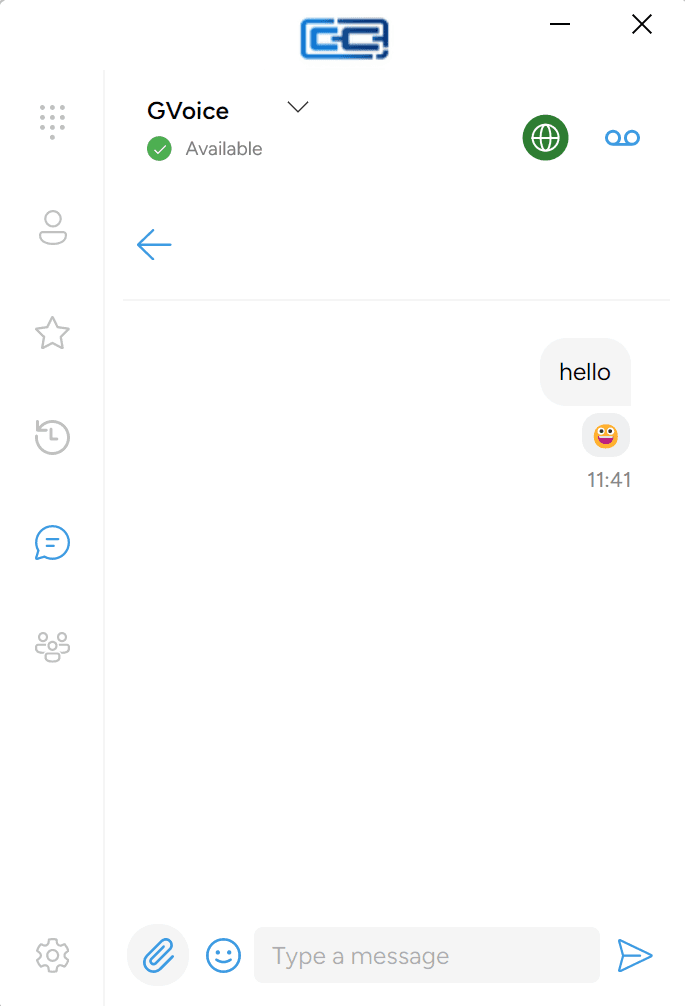
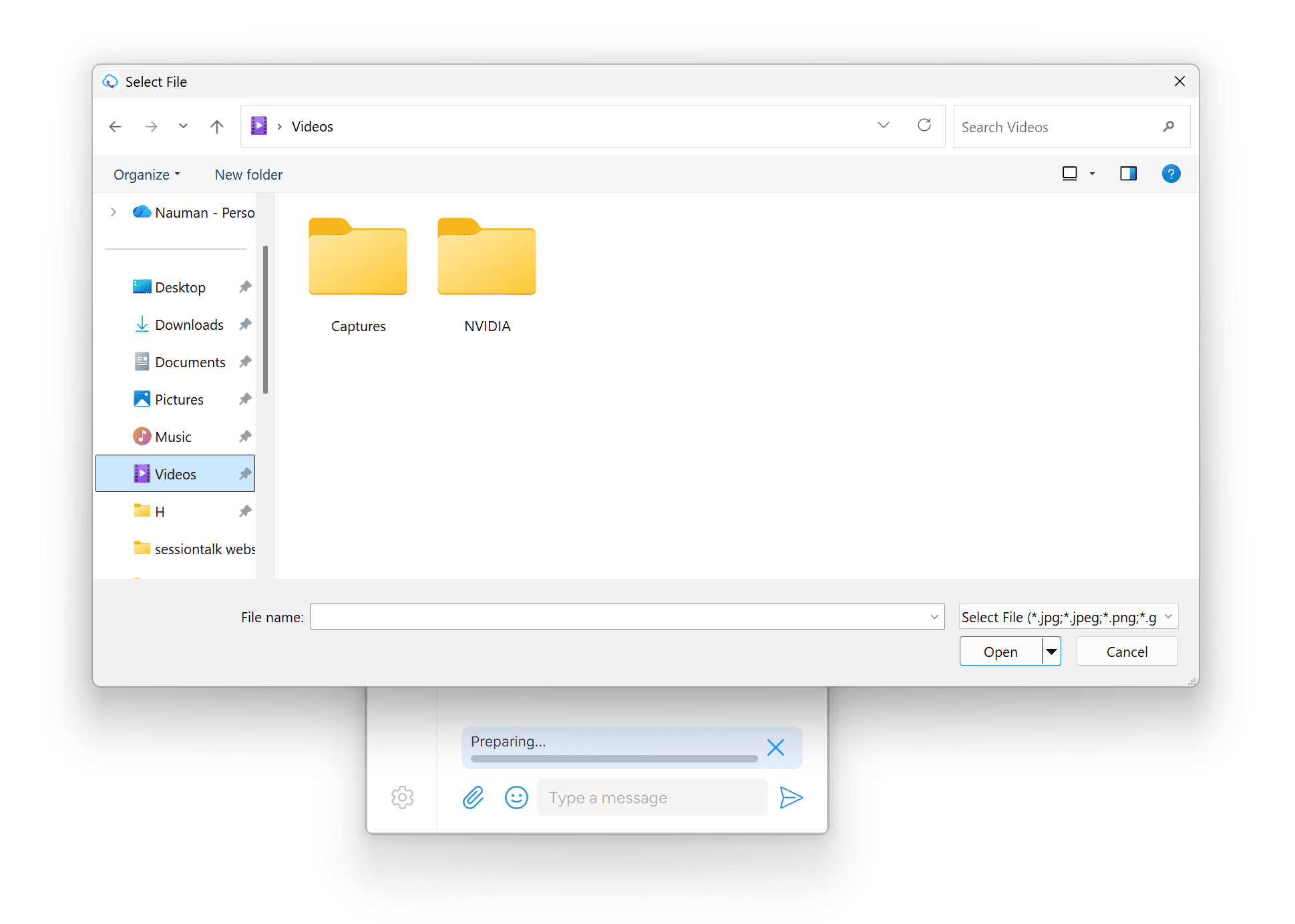
- Click the paperclip icon to the left of the text box.
- The system file picker opens.
- Pick the file.
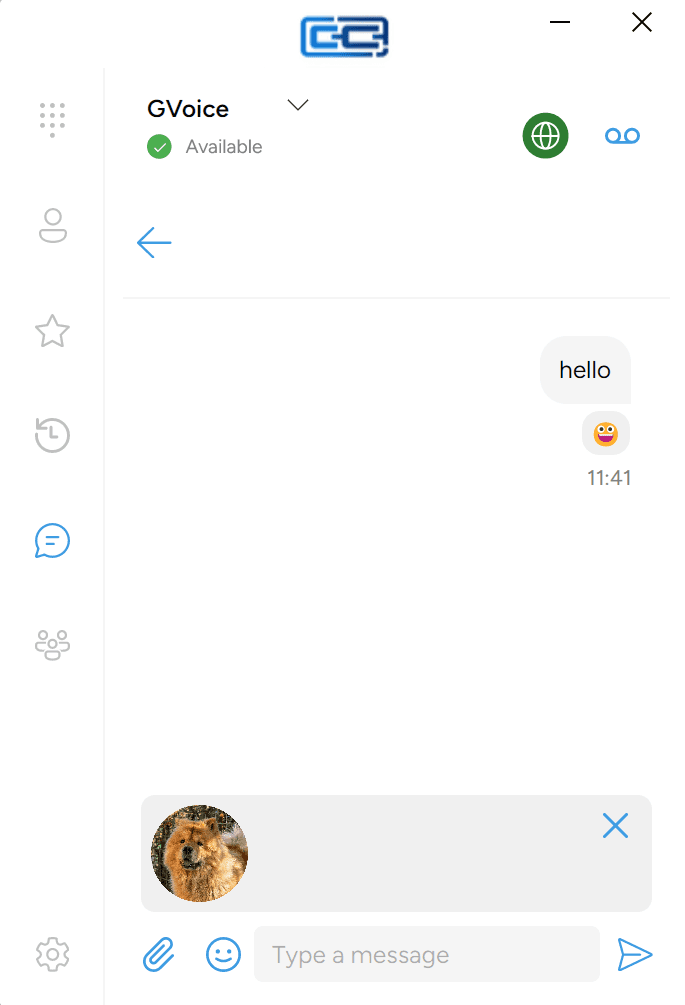
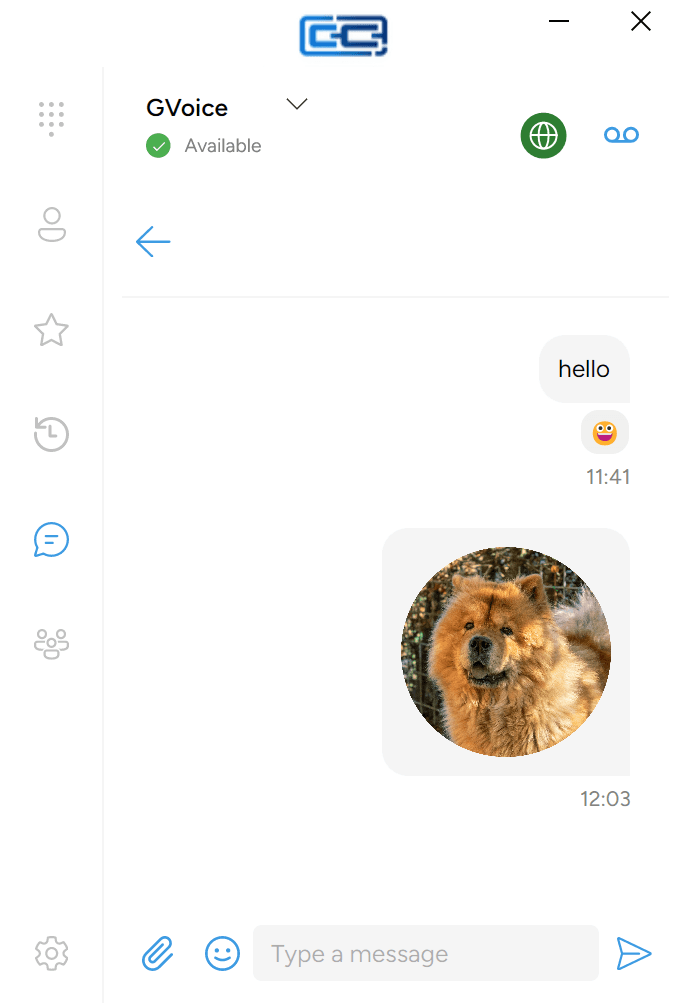
The file uploads to your provider’s IM upload service in the background and appears in the conversation as soon as the upload finishes. Small files go in a second or two; larger files take longer depending on your connection.
Attachments go through your provider’s upload service, not device-to-device. The other person doesn’t need to be online when you send — they’ll receive the file the next time they open the app.
Opening an image or video
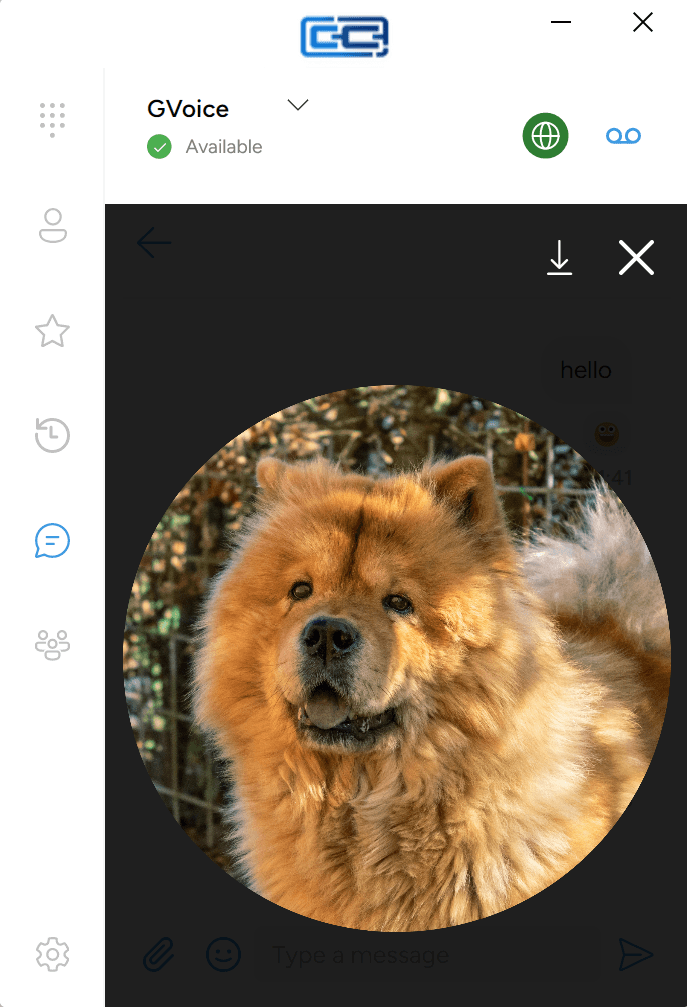
To see an image at full size, click its thumbnail in the conversation. The image opens as a full-window overlay with two controls in the top-right:
- Download (a down-arrow icon) — saves the image to your computer.
- Close (X) — returns to the conversation.
The overlay shows one image at a time; there’s no way to page between other images in the conversation.
Videos work the same way. Click a video thumbnail and it plays full-window with a single Close (X) button in the corner. The video viewer doesn’t offer a download button — if you need a local copy of a video, ask the sender.
Where older messages come from
When you sign in on a new computer — or open a conversation for the first time in a while — the app fetches recent history from the IM server. This normally takes a second or two; on a slow connection it can take longer. Scrolling up in a conversation loads older messages a page at a time.
IM history is stored on your provider’s chat server, not only on your computer. Signing out and back in, or moving to a different computer, won’t lose your conversations — as long as your provider has history enabled on their server.
Group conversations
To send one message that a whole group sees at once, use a Room instead of a one-to-one conversation. See Rooms for how to find, join, and use one.
When a message won’t send
If a message stays in the conversation with no green checkmark for more than a moment:
- Check that the account you’re sending from has Active Account turned on — see the troubleshooting section in Setting up IM.
- Check that your computer is online — try loading a webpage in your browser.
Messages you type while the app is offline are held on your computer and sent automatically the next time IM reconnects.
Next steps
- IM buddies and presence — add people to your buddy list and set your own presence
- Rooms — group conversations