IM notifications
When the softphone window is minimised, IM notifications are how you find out about new messages. This article covers how they work on desktop and what to check when they stop arriving.
If IM isn’t set up yet, start with Setting up IM.
How they work on desktop
The desktop app is different from a phone. There’s no push server sitting between you and your provider’s chat server — the app maintains its own connection to the chat server the whole time it’s running.
- While the app is running (window open or minimised), new messages come in over that connection, and on Windows a system toast pops up in the bottom-right of the screen.
- When you close the main window with the X button, the app doesn’t fully quit — it just minimises. The connection stays open and toasts keep arriving.
- If you fully quit the app (right-click the taskbar entry → Close window, End Task in Task Manager, or reboot), the connection drops. No messages will arrive as notifications until you open the app again.
The app does not currently autostart with Windows. After a reboot you’ll need to open the app manually before IM notifications will resume.
On macOS, incoming-IM notifications are not implemented in the current build — messages you receive while the window is in the background will not raise a notification. Incoming calls still notify normally. If you need to be reachable by IM while away from your Mac, use the mobile softphone signed in with the same account.
What the notification shows
A desktop IM toast shows two lines:
- Who sent it — the buddy’s name (or their IM address if you haven’t added them as a buddy).
- A preview of the message — the message text.
The toast does not include an inline reply box or media-type icon. Clicking a toast dismisses it; open the app from the taskbar to read and reply.
When notifications don’t arrive
If someone sends you an IM and Windows stays silent, work through these in order:
1. Check the app is running
Look for the app on the Windows taskbar. If the icon is missing, the app is fully closed — reopen it from the Start menu. The window will restore its previous position.

2. Check the in-app Messages alert is on
The desktop softphone has its own toggle that gates message toasts, separate from Windows settings.
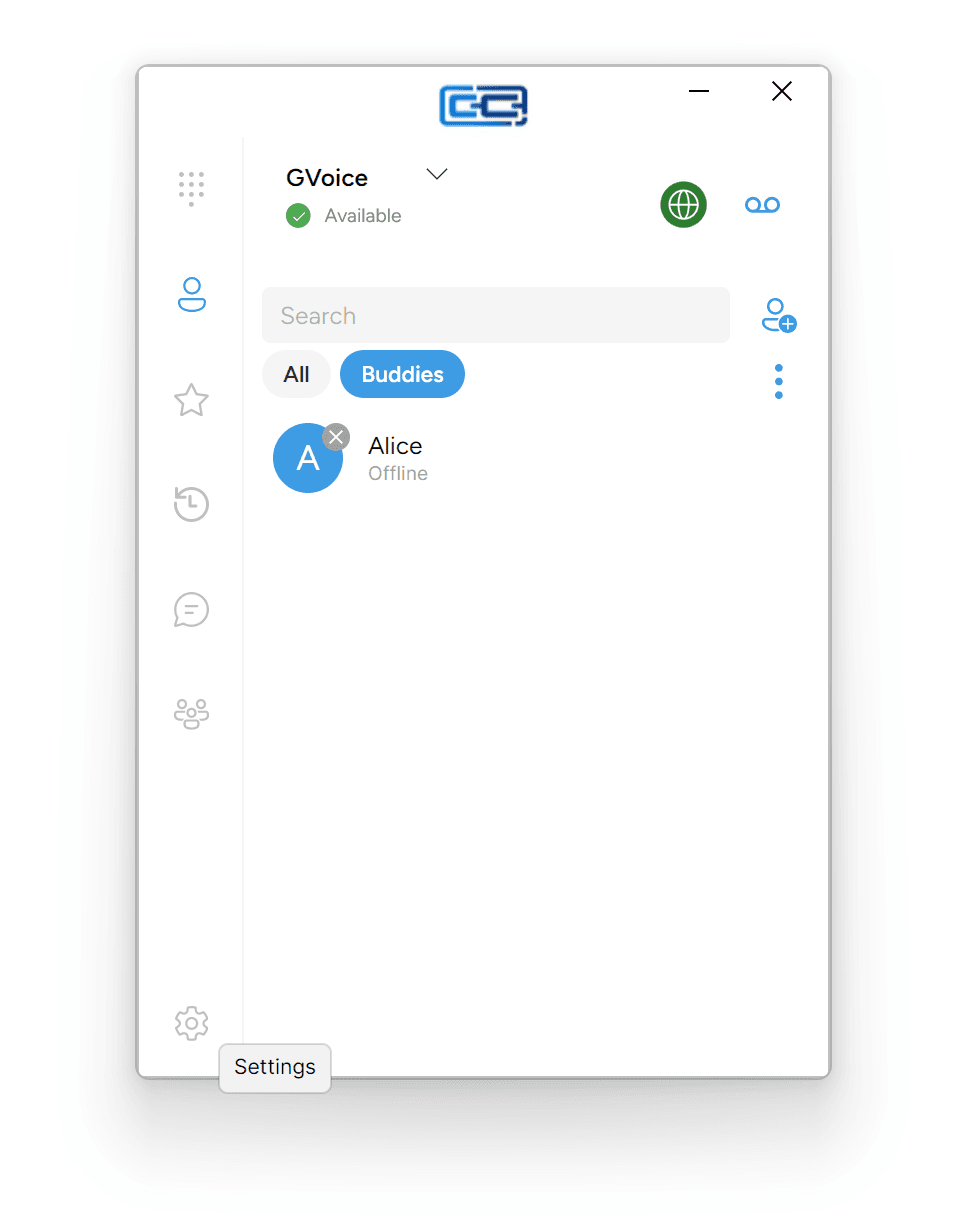
- Click the gear (Settings) icon at the bottom of the left rail.
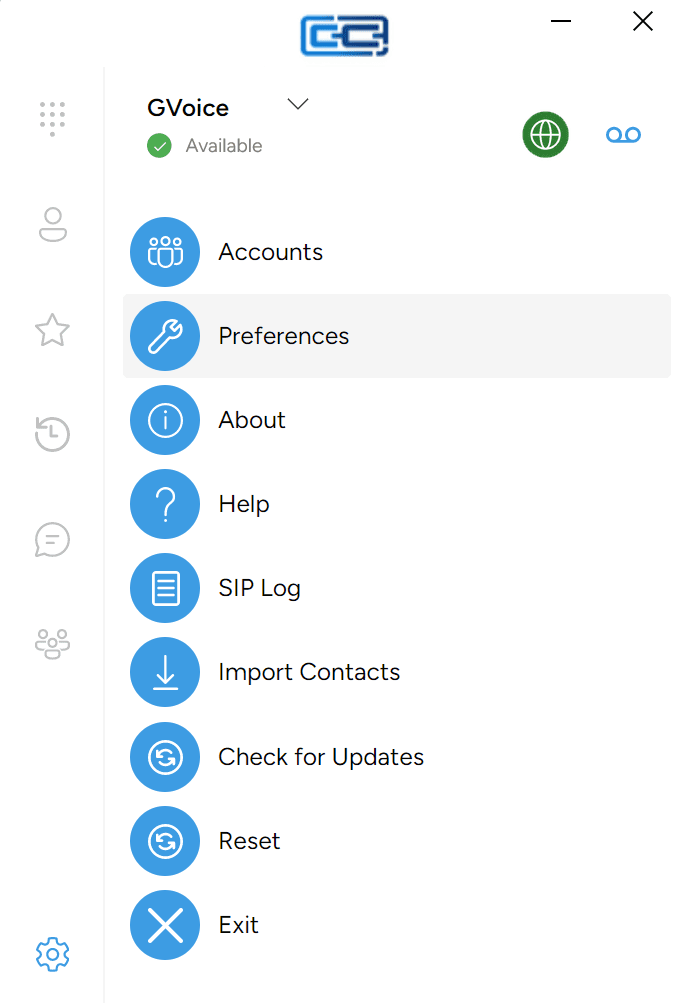
- Select Preferences from the Settings menu.
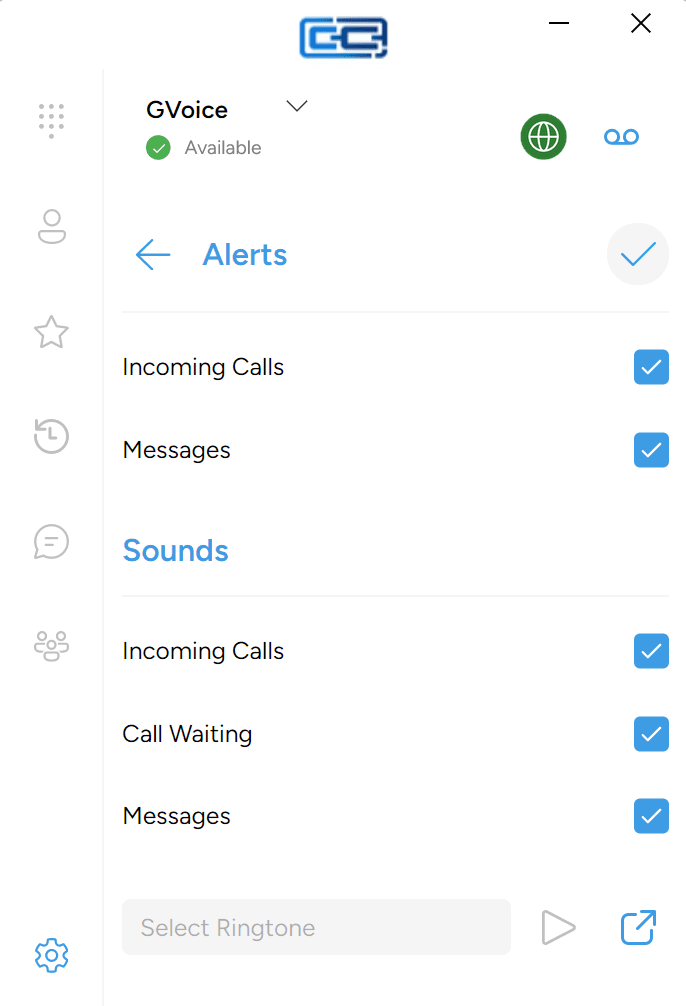
- Open Alerts and Sounds.
- Make sure the Messages checkbox is ticked.
If this is unticked, no toast will fire even if Windows is willing to show it.
3. Check IM is connected
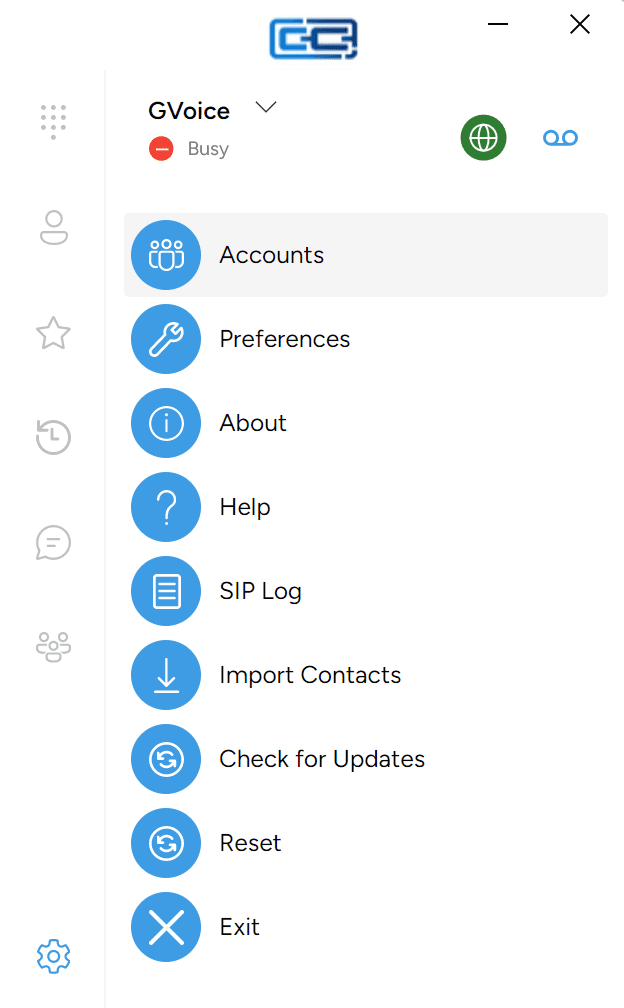
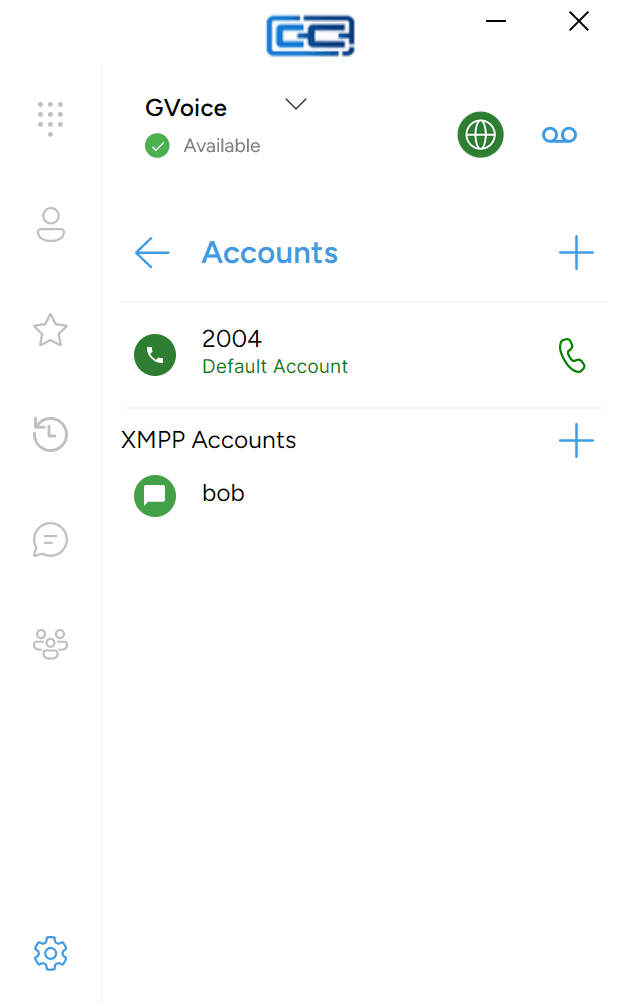
Click the gear (Settings) icon at the bottom of the left rail → Accounts and scroll to the XMPP Accounts section.
Each account entry has a coloured dot next to its name — green means connected, red means not connected. If yours is red, IM can’t route messages to you and no toast will fire. Open the entry to check your password is correct, or see the troubleshooting table in Setting up IM for more.
4. Check Windows notification permission
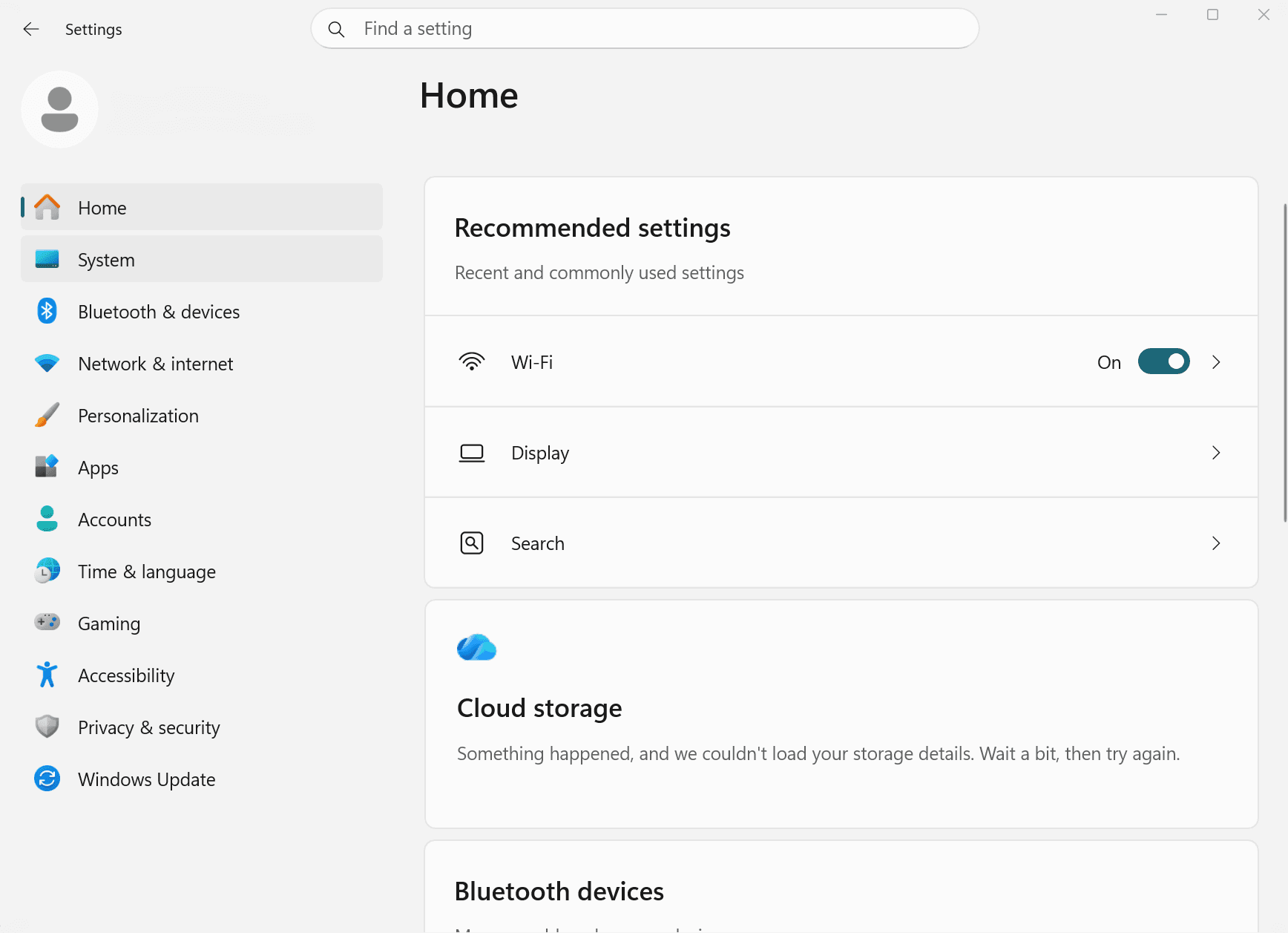
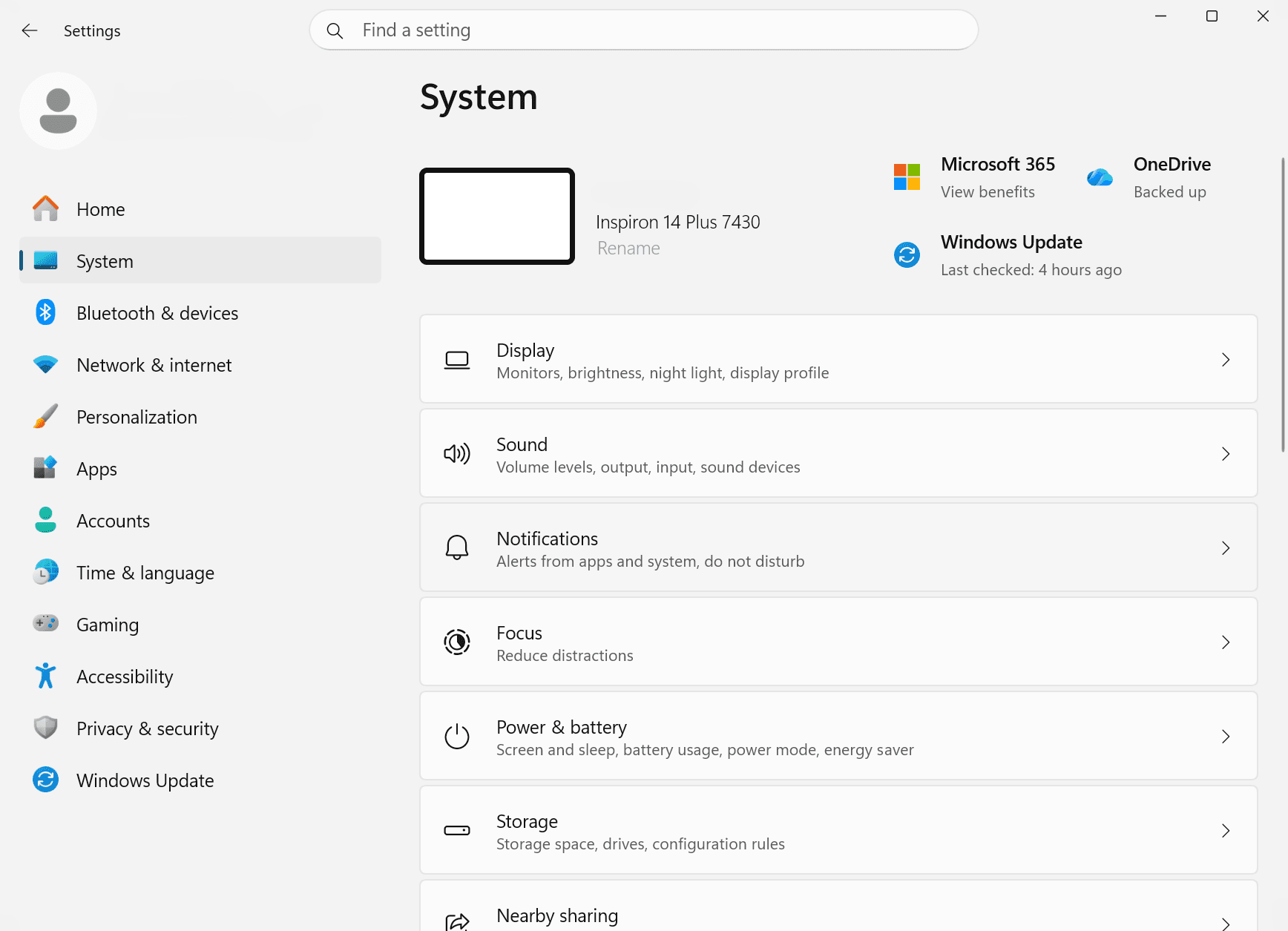
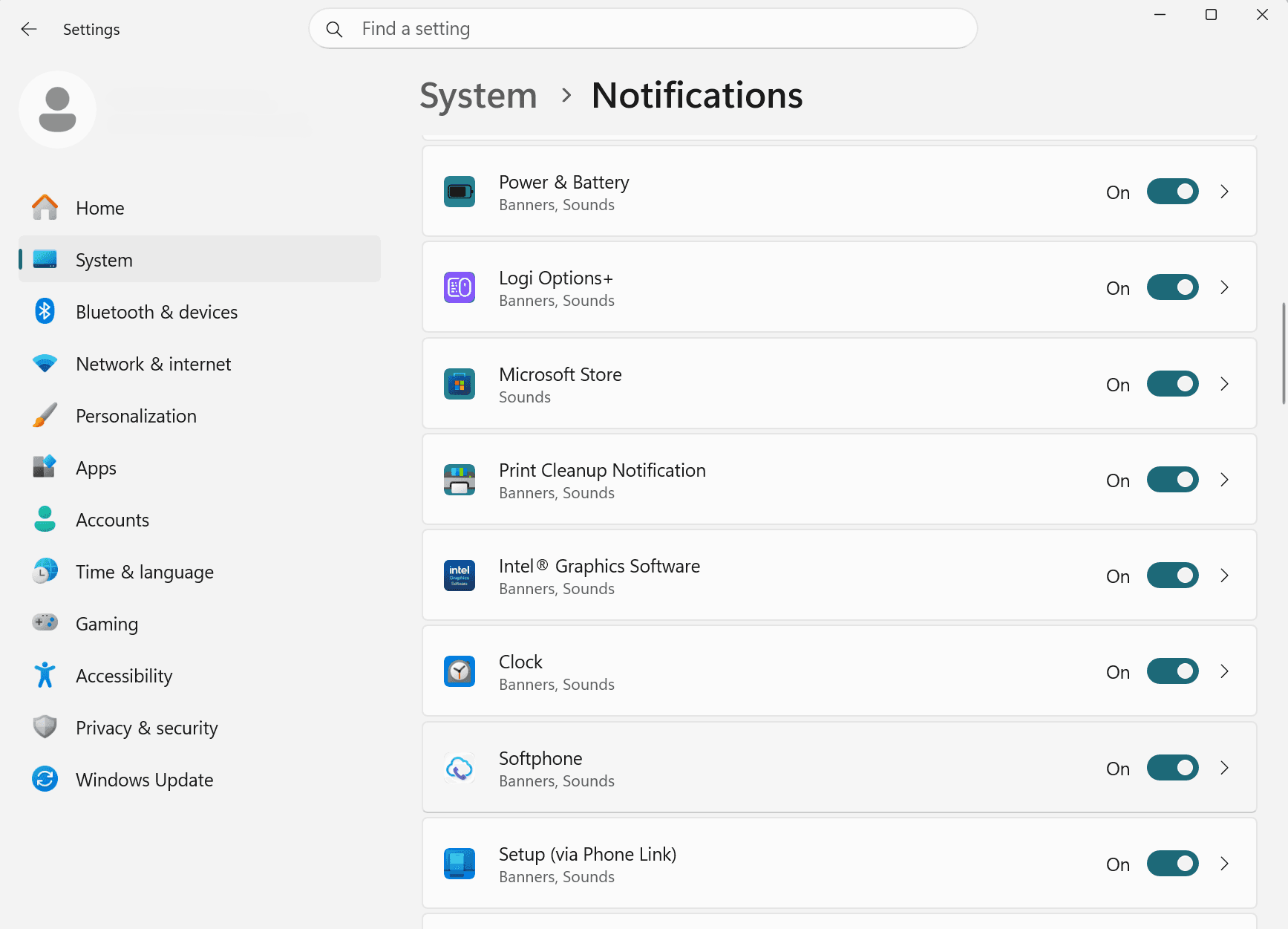
- Open Windows Settings → System → Notifications.
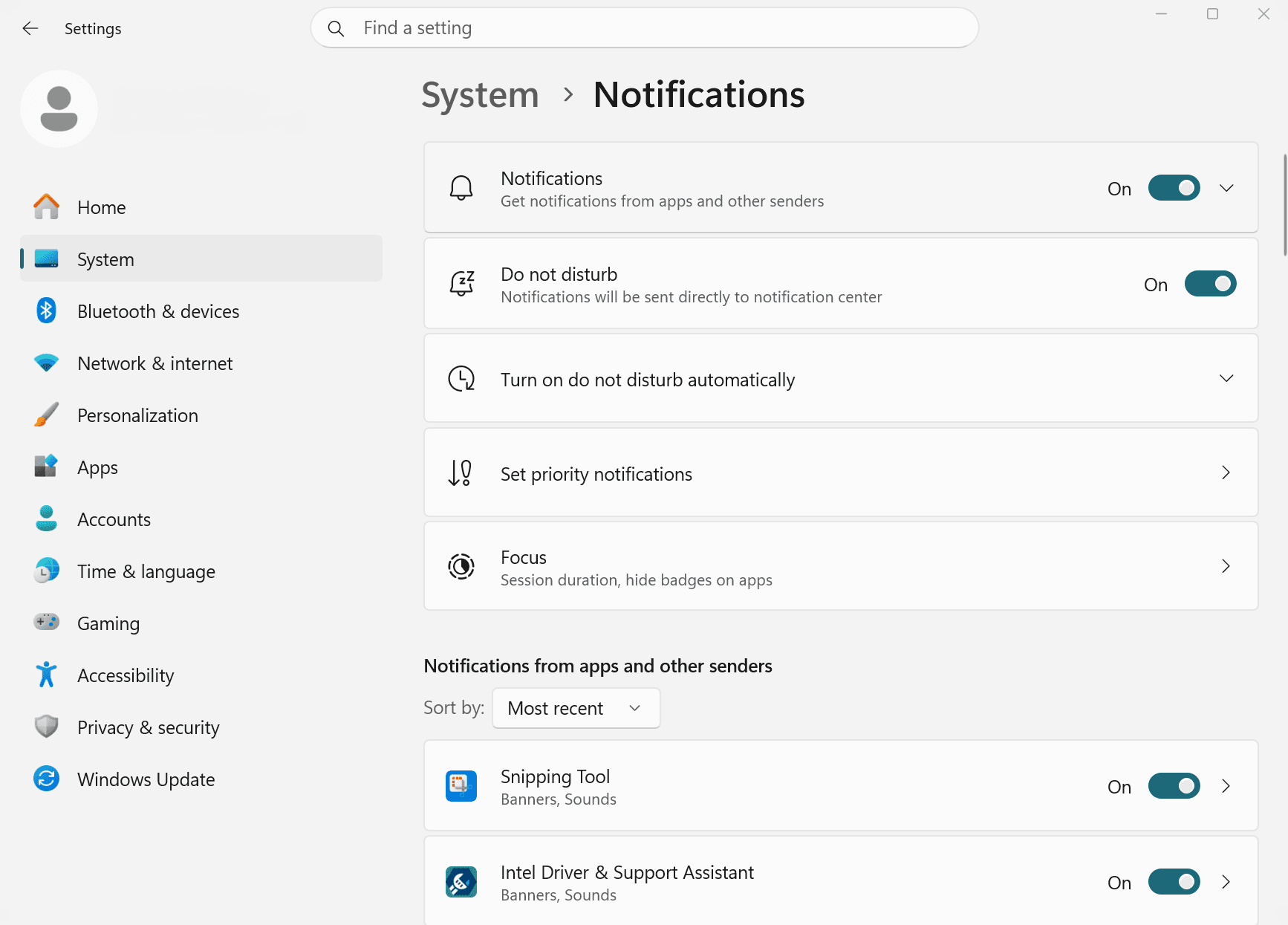
- Under Notifications from apps and other senders, find Softphone in the list.
- Make sure its switch is On.
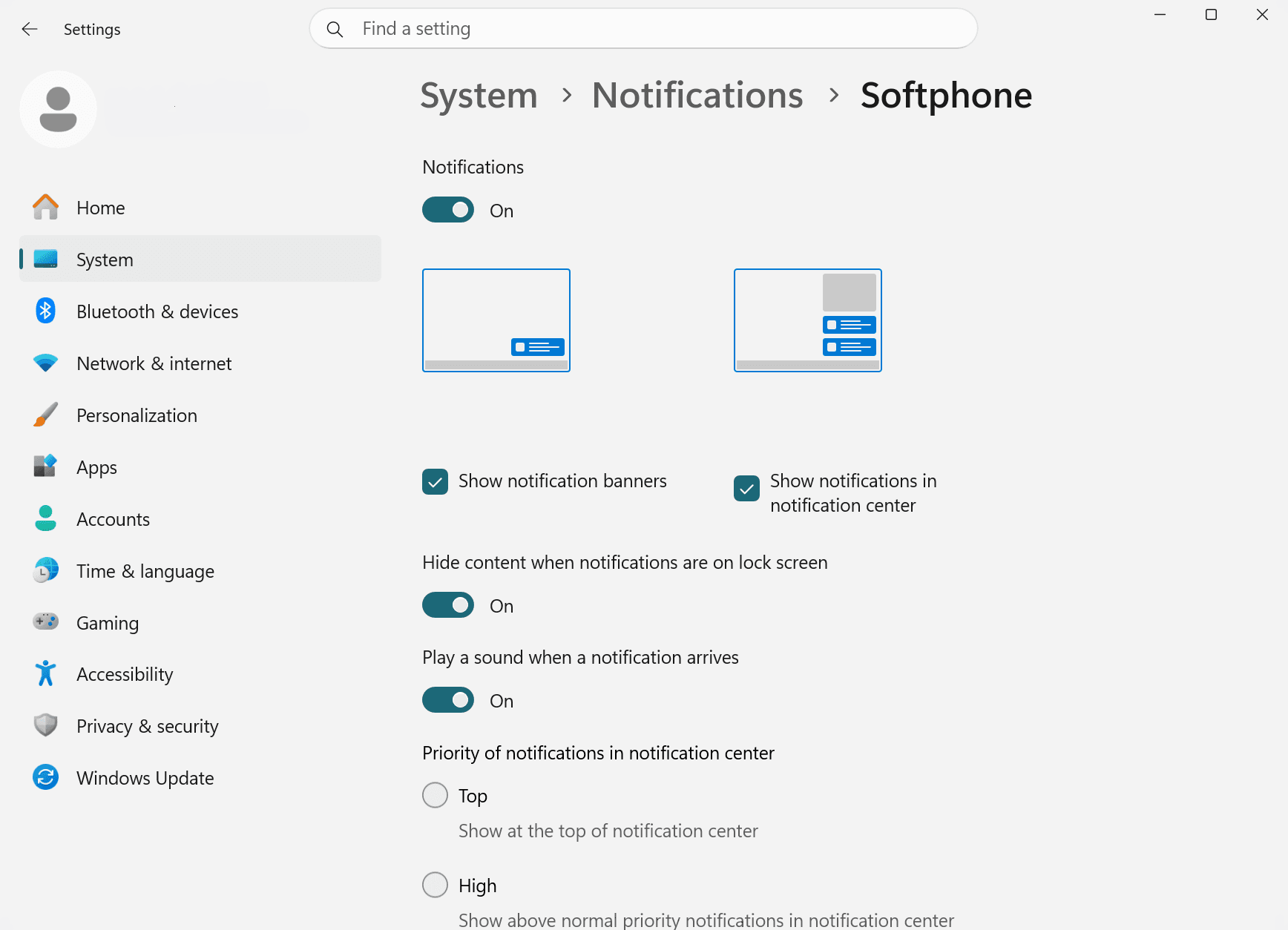
- Click Softphone to expand it, and confirm that Show notification banners is enabled if you want the popup, and Play a sound when a notification arrives if you want an audible cue.
If you can’t see Softphone in the list, trigger one toast first (send yourself a message from another device or ask a buddy) — Windows adds apps to this list only after they’ve raised at least one notification.
5. Check Windows Focus / Do Not Disturb
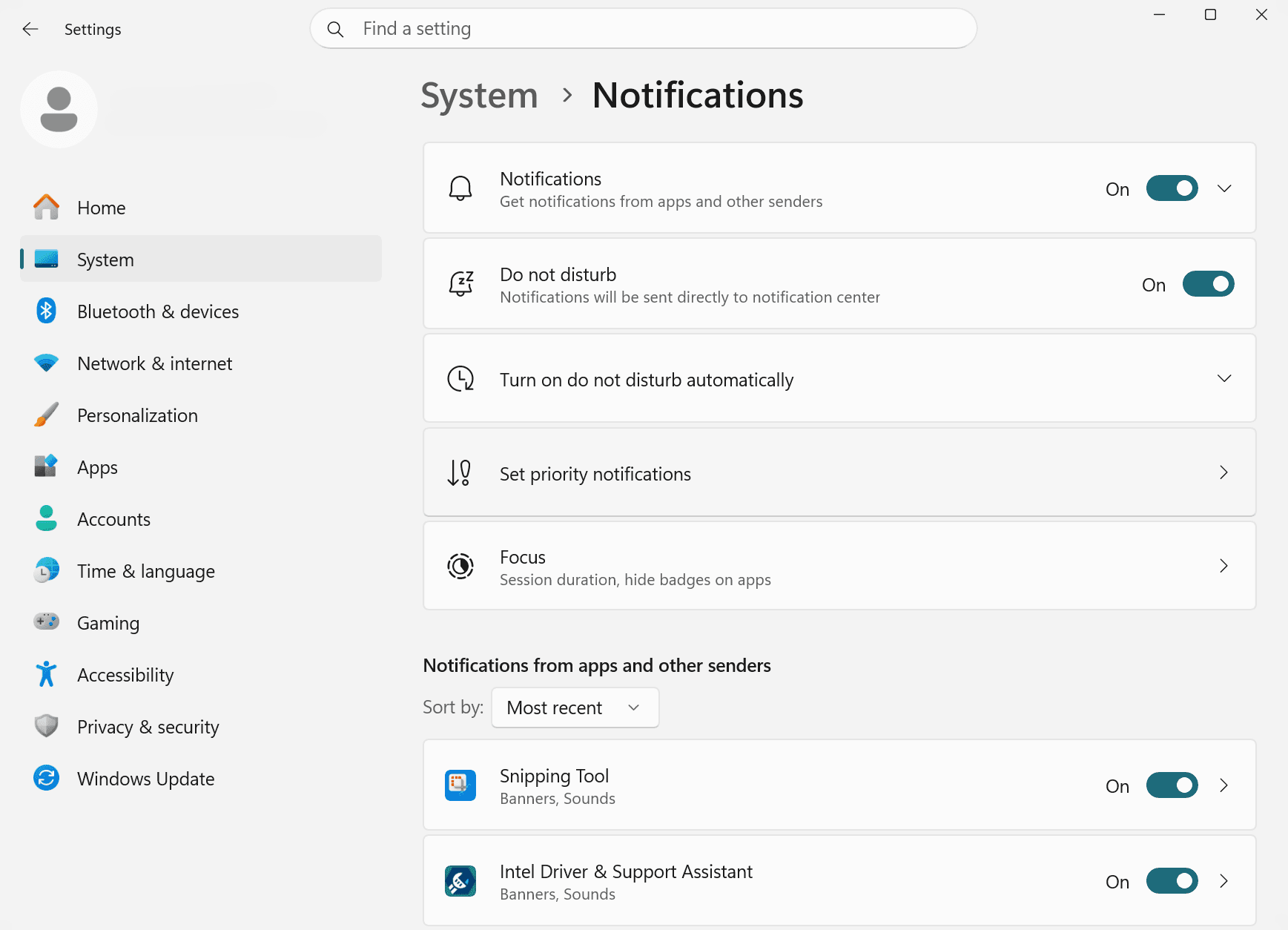
Windows 11 has a Do not disturb mode (in Windows 10 it’s called Focus assist) that silences notifications from apps you haven’t allowed through.
- Open Settings → System → Notifications.
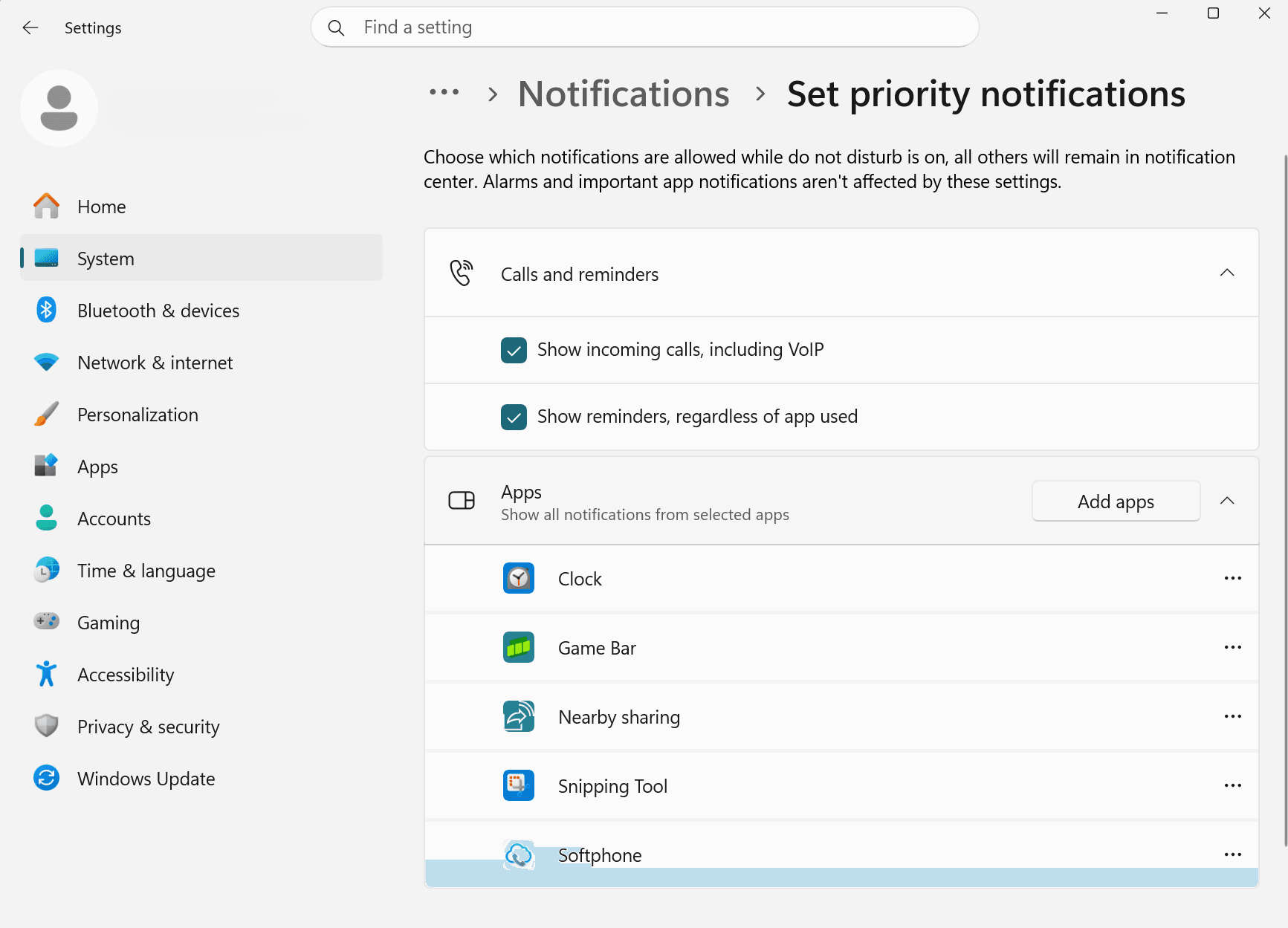
- Turn Do not disturb off, or expand Set priority notifications and add Softphone to the allowed list.
This is separate from the in-app Do Not Disturb presence status (covered in IM buddies and presence). The in-app status only changes how you appear to your buddies; Windows Do Not Disturb affects whether any notification banners or sounds appear on your PC.
6. Check you’re not signed in somewhere else
If you’ve signed in on a second device — a phone, a tablet, or a second PC — and that device is actively online, your chat server may deliver the message there instead of pushing it to this PC. Sign out on the device you’re not using.
7. Send yourself a test
Once you’ve changed a setting, send yourself a message from another device, or ask a buddy to send one. Toast notifications appear immediately once the message reaches the app; if nothing appears within a few seconds, the message wasn’t the problem — try the next step.
If none of the above helps, contact your provider. The chat server itself may be having a problem, and no client-side setting will help until that’s resolved.